

- 01
Install and Launch Hiddify
Get the package for your device. On a typical Windows x64 PC, use Setup x64, finish installation, then launch the app and choose the interface language.
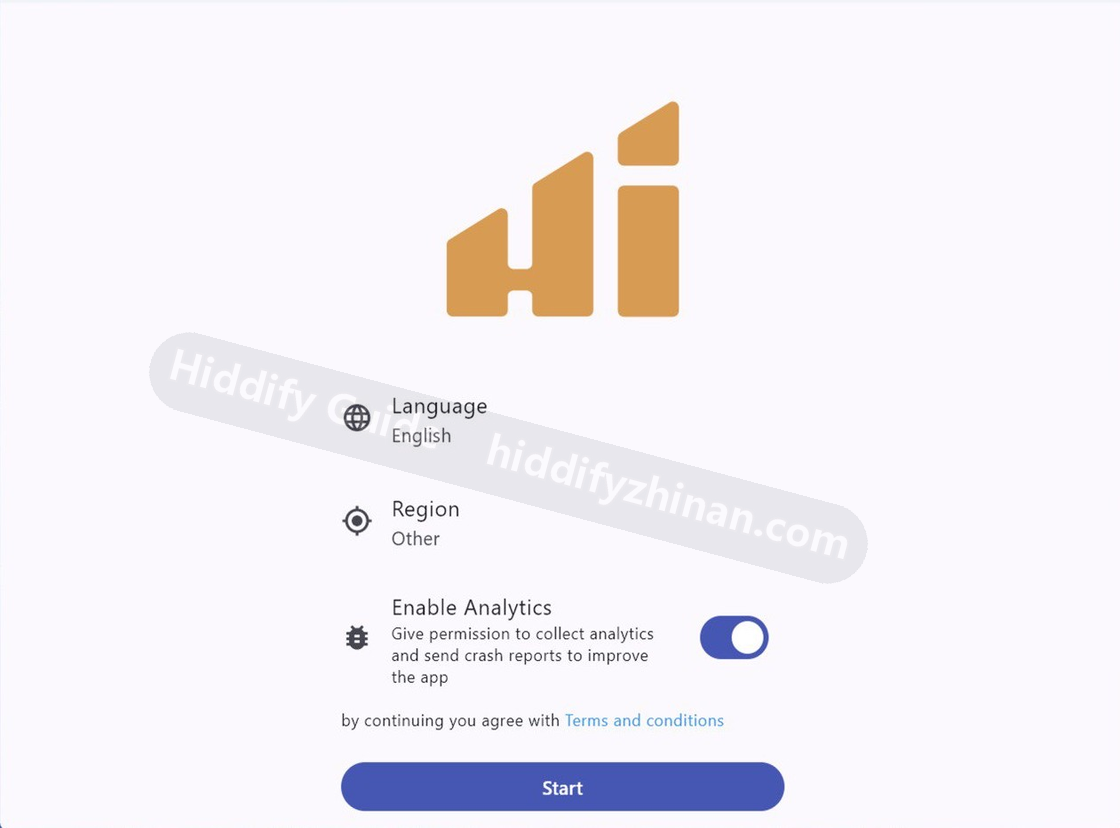
Choose the language and region, then continue; control positions may differ in the current release. What success looks like: Once the dashboard opens and shows Add profile, continue to profile import.
Recovery: If installation or launch fails, return to the platform download page and recheck the operating system, architecture, and file format.
- 02
Import the Profile
Copy the complete profile URL, open Add Profile, and read it from the clipboard or paste it manually. Wait for the profile name to appear.
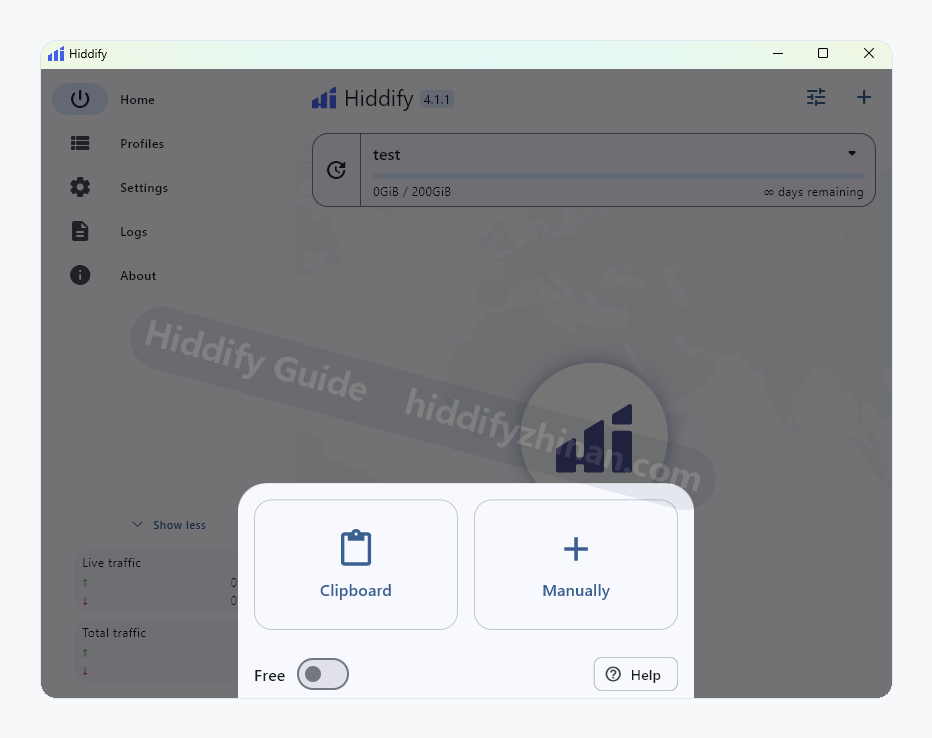
Add a profile from the clipboard or enter it manually. What success looks like: The profile appears on the dashboard.
Recovery: If the profile does not appear, recheck the complete URL before changing proxy mode, DNS, or TUN.
- 03
Choose One Proxy and Connect
Open the proxy list, choose one responsive proxy, return to the dashboard, and connect. Keep that proxy selected during the first verification.
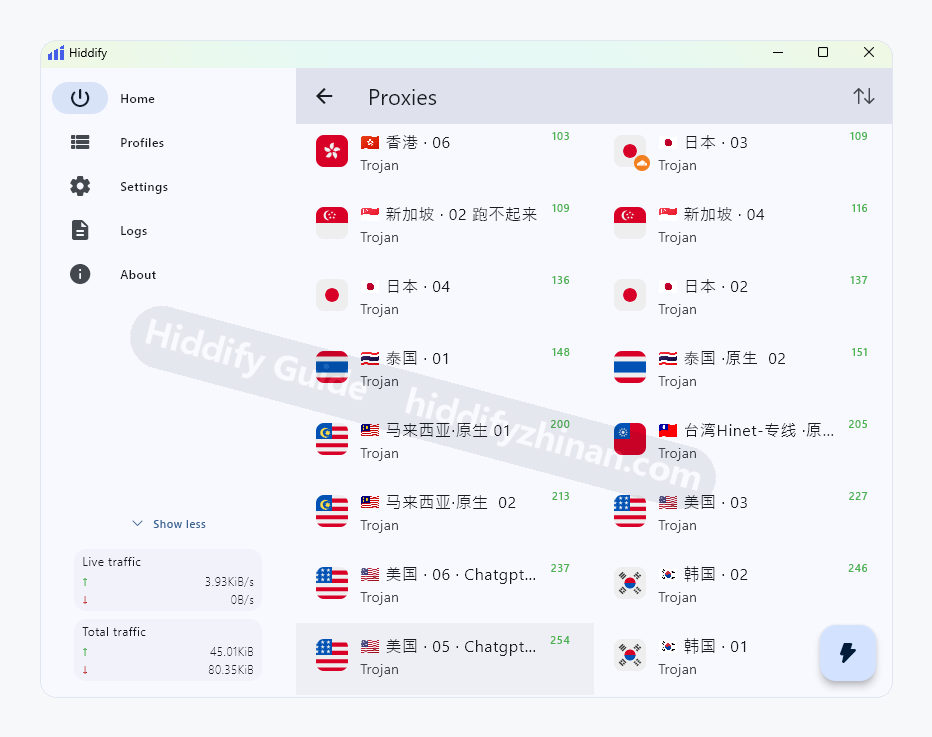
Choose a responsive proxy, then return to the dashboard to connect. After this step: The proxy remains selected and the connection state stays stable.
Recovery: If the proxy list is empty, open the Missing Proxies page.
- 04
Route the Browser Through System Proxy
Choose system proxy mode, then open a real page in your usual browser without enabling TUN at the same time.
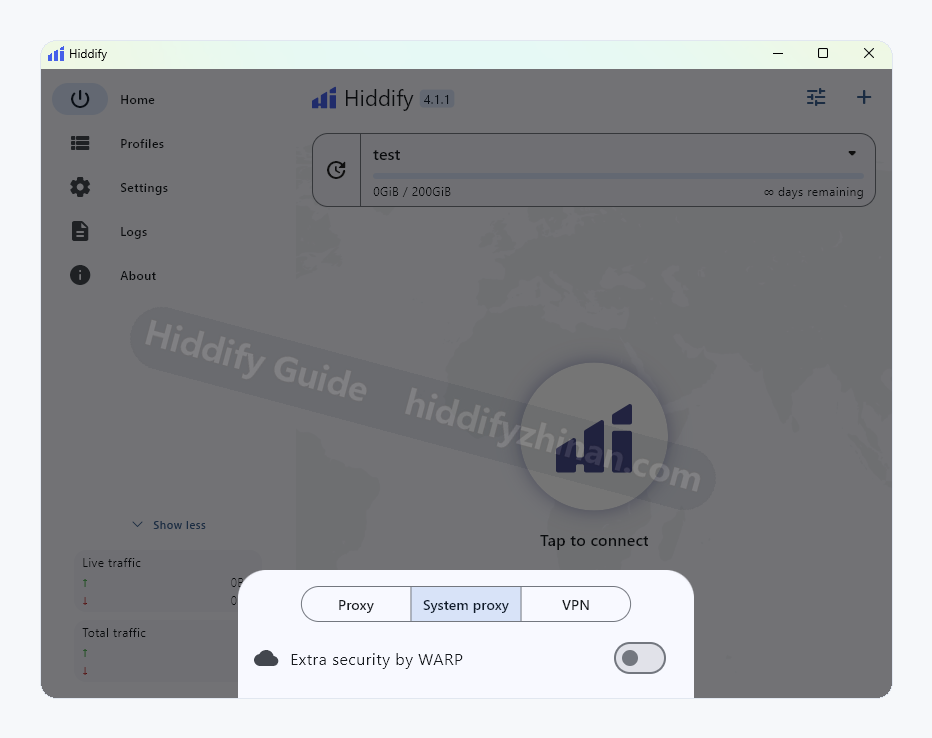
Choose the routing mode needed for what you are doing. Check the result: The browser loads a page, and disconnecting Hiddify restores the previous network path.
Recovery: If the browser still cannot load the page, open the system-proxy troubleshooting branch.
- 05
Use TUN Only for Apps That Bypass System Proxy
After the browser path works, review service mode and the TUN implementation only if a specific app still bypasses system proxy.
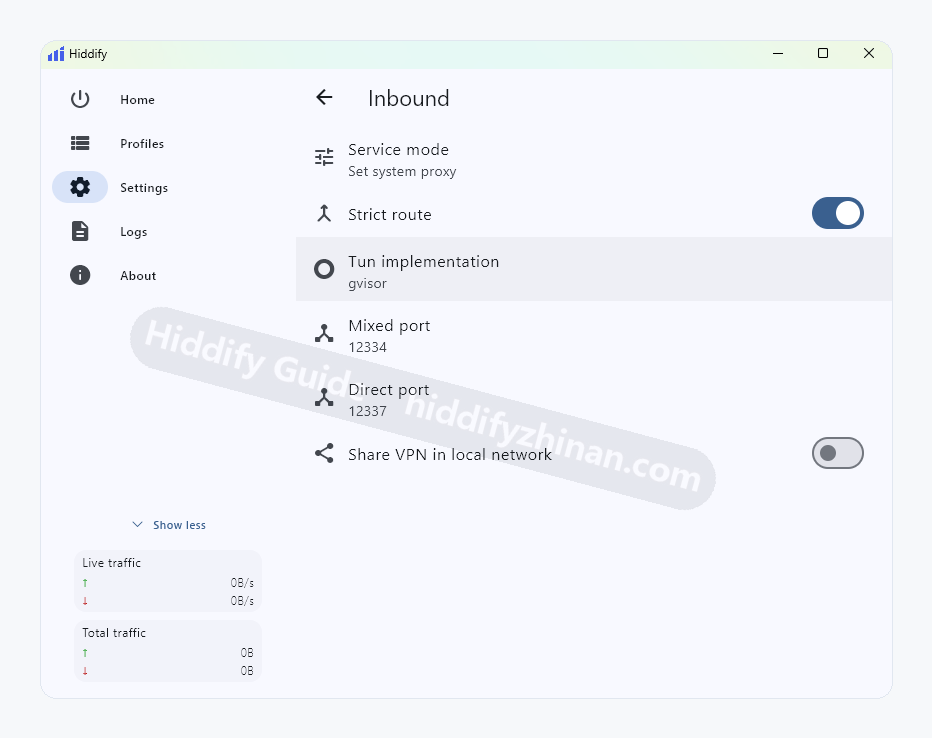
Inbound settings for service mode, TUN implementation, local ports, and LAN access. What success looks like: The affected app works while the browser and local network remain normal.
Recovery: If local networking, DNS, or routing breaks, disable TUN and restore the pre-test state.
Confirm These Three Results
- The dashboard shows Connected and the current proxy.
- The profile has a name, update time, and selectable proxies.
- The target browser or app completes a real access check.