

When System Proxy Is the Right Mode
Browsers and desktop apps that follow operating-system proxy settings should normally be tested with System Proxy first. It does not automatically cover apps that ignore OS settings and is not the same as TUN. Keep one proxy stable, change only System Proxy, and retest the same target to separate proxy availability from routing coverage.
Why use it first: one mode change can verify browser traffic, and restoring the previous mode is enough to undo the test without involving DNS, LAN routing, or another VPN. Keep the proxy and target page fixed, then test once while connected and once after disconnecting.
Do not infer success from a button color. Load the same target in one browser while connected, disconnect Hiddify, and test again. That before-and-after result confirms whether System Proxy covers the browser; compare TUN only if another app still fails.
- 01
Record the Current Mode
Record the current routing mode, selected proxy, and connection state before switching. Fully close the target browser, choose one fixed test page, and note whether another VPN is active. Change only System Proxy during this attempt. That separation lets the result distinguish proxy availability from application coverage and provides an exact state to restore.
- 02
Select System Proxy
Choose System Proxy in the dashboard mode control. The red arrow marks the location. Do not enable TUN, change DNS, or select another proxy at the same time. Wait for the connection state to settle, then fully restart the target browser. If labels differ by version, use the icon, position, and current state.
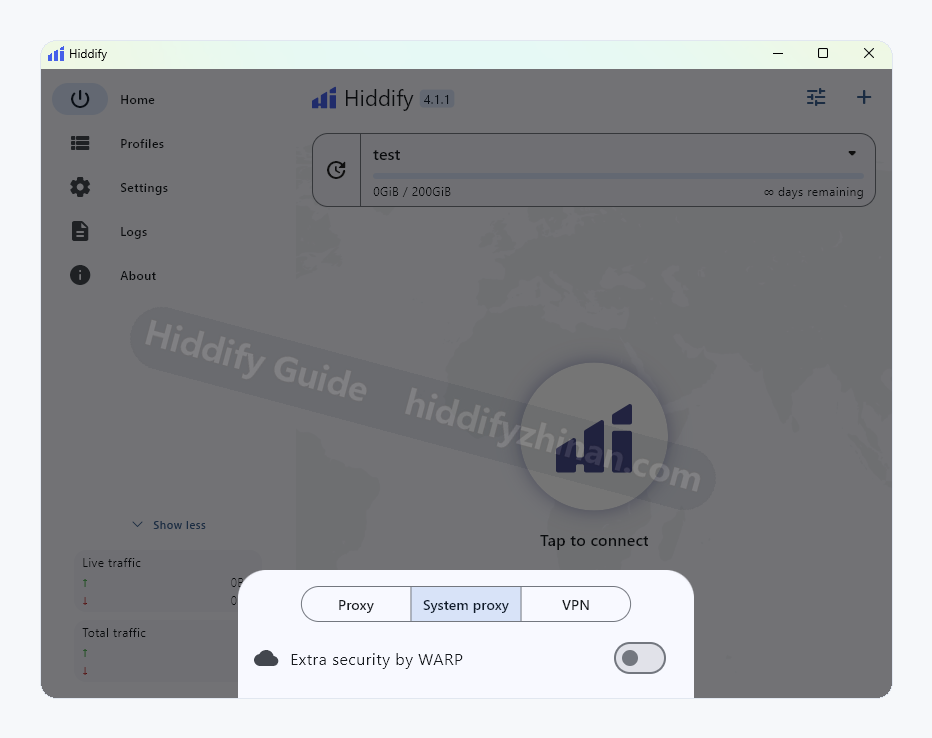
Choose the routing mode needed for what you are doing. - 03
Start the Connection
Keep the proxy unchanged and wait for a stable connection. The current images do not include that final state, so a proxy list or settings screen is not used as a substitute. If Hiddify disconnects immediately, enter proxy or connection troubleshooting. Test browser coverage only after the dashboard remains stable.
Check the result: The connection settles without an immediate error and the selected proxy remains unchanged. This proves only that the client has not failed yet; it does not prove that the browser uses System Proxy. Keep the state fixed and continue to a real target request before deciding that the mode works.
- 04
Verify the App That Needs Access
Load a real page in the target browser or app, then check a local application that should remain unaffected. Use the same page before and after the mode change, and fully restart the browser. If only a cached page appears, choose an address that has not been loaded so cache cannot masquerade as routing success.
How to confirm: The target loads real content, local networking behaves as expected, and disconnecting Hiddify restores the previous path. Keep System Proxy only when that before-and-after comparison holds. If one application that ignores operating-system settings still fails, record the result and evaluate TUN as a separate test.
Recovery: If validation fails, disconnect, restore the previous mode, and fully quit and reopen the target browser. Confirm that ordinary local access returns, then preserve the proxy, page, and error for troubleshooting. Do not stack TUN, DNS, or another VPN change onto a failed System Proxy state.