

This guide uses labeled Windows Hiddify 4.1.1 screenshots; the controls or reconnection behavior may differ in another release.
Switch a saved profile in Hiddify
Start with both subscriptions already visible in the app. If the second one has not been added, follow the Hiddify profile import guide first. Remember the name of the profile that currently works. You do not need to copy its private subscription URL or delete it to make a switch.
- From the Windows app, open Profiles. In the first image, ① marks the left-hand 配置文件 control, which means Profiles. The screenshot is in Chinese, but the position and numbered labels show the task on the illustrated 4.1.1 interface.
- Select the name or main body of the profile you want to use. The example selects test2 at ②. The three-dot control beside a profile is for managing that profile; it is not the selection step.
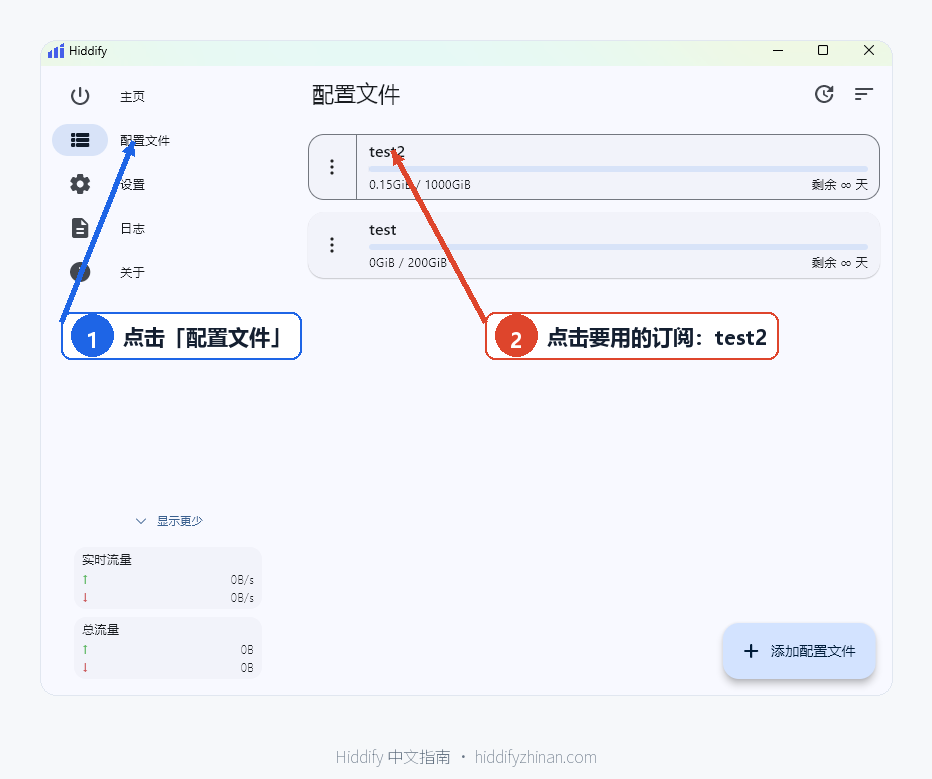
Windows 4.1.1 example: ① opens Profiles (配置文件); ② selects the saved test2 profile. No subscription URL is shown.
- Return to Home if the app has not already taken you there. The second image marks Home at ③. Its visible profile is named test; this is a separate illustration of the controls, not a screenshot of test2 after the switch.
- Look at the connection state before pressing the center button. If you were disconnected before changing profiles, press the center Connect button at ④ and wait for the connected state. If you were connected, the documented 4.1.1 behavior is to reconnect after a profile change. Give that reconnection time to settle. Pressing the center button during the brief disconnected state could stop it. On a different version, follow the state actually shown by your app instead of assuming the same automatic behavior.
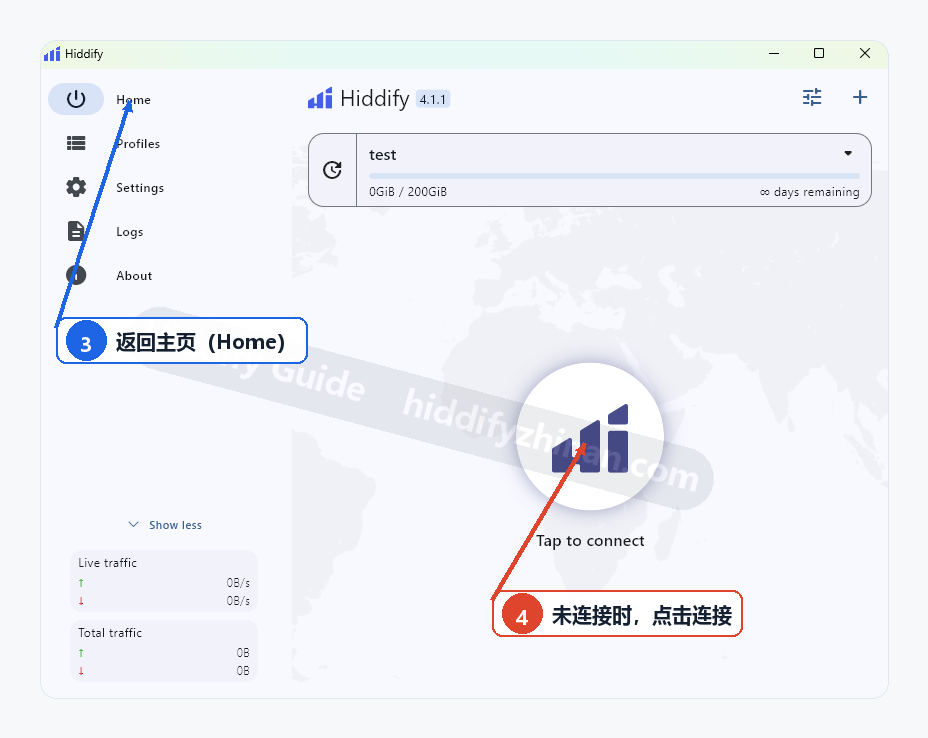
Separate 4.1.1 Home example: ③ returns to Home; ④ is the center connection button for a disconnected session. Its test label does not show the outcome of selecting test2 above.
The official Hiddify usage guide describes selecting a different profile from the profile list and using Home to connect. The automatic reconnect note above is limited to the 4.1.1 connection code, rather than a promise about every release.
A profile and a proxy are different choices
A subscription imported into Hiddify is stored as a profile. Its available routes appear as proxies once the profile is active. Choosing test2 in Profiles changes the subscription whose routes the app can use. Choosing another row in Proxies changes a route within the selected profile.
For example, if test2 is already active and only one of its routes performs poorly, stay with test2 and choose a proxy within that profile. If the routes you need belong to your other subscription, return to Profiles and select that subscription instead. Saving two profiles does not mean their routes are combined or their speeds added together.
Check the selected subscription with a real task
After the connection state settles, confirm the intended profile is selected and open a site or app you actually need to reach through it. A successful page load or completed app action is a useful result. A profile name, a green connection indicator, or a latency number alone cannot show that your target works.
If the target opens, you are done. Leave both profiles saved so you can choose either later. If it fails, note which state you saw: the target profile was absent, its proxy list was empty, or the app connected but your destination would not open. Those are different next steps.
If the selected Hiddify subscription fails to open your target, check the profile name and proxy list before changing a route. A working page confirms the result; a connection indicator alone does not. Stop changing settings if the list is empty and follow the matching guide below.
If the new profile is missing or does not work
The target profile is not listed: Check the saved names once. If the subscription was never imported, use the import guide to add it from your private source. Do not post the URL in a public support thread or screenshot.
The profile is selected, but Proxies is empty: This points toward an import or subscription refresh problem. Work through the empty proxy list checks rather than repeatedly pressing Connect.
Hiddify connects, but your destination still fails: Follow the connection troubleshooting path and distinguish the app's status from the result at your target. You can select the previously working profile again while you investigate. Switching back does not require deleting or reimporting it.
Questions about switching profiles
Do I have to delete the old subscription?
No. Choosing another saved profile changes which one is active. Keep the old profile as a fallback, and remove it only if you independently decide you no longer need it. Deletion is not a switching step.
How do I change only a proxy node?
Keep the current profile selected. Once connected, open Proxies and choose a route within that profile. The manual proxy selection guide covers this separate task.
Should I press Connect again after switching while already connected?
For the illustrated Hiddify 4.1.1 behavior, wait for automatic reconnection if you were connected before the switch. A temporary disconnected state can be part of that transition. If you started disconnected, use the Home button to connect. On another version, use the state you actually observe.
Does importing two subscriptions combine their nodes?
No. Each saved subscription remains its own profile in this workflow. Selecting one is different from merging profiles or stacking connection speed. To use the other subscription, select its profile by name.
Keep both profiles available
The useful distinction is simple: Profiles chooses the subscription, and Proxies chooses a route inside it. Select the profile you need, let the connection settle, and test a real destination. If the new subscription is not ready, select the earlier working profile and follow the matching failure guide. You can find more tasks in the English Hiddify article index.