Find the Feature for the Task Instead of Copying Every Setting
Use System Proxy when a browser does not follow Hiddify, evaluate TUN for apps that bypass System Proxy, inspect DNS only for name-resolution symptoms, and review inbound settings for port conflicts or manual-proxy failures.
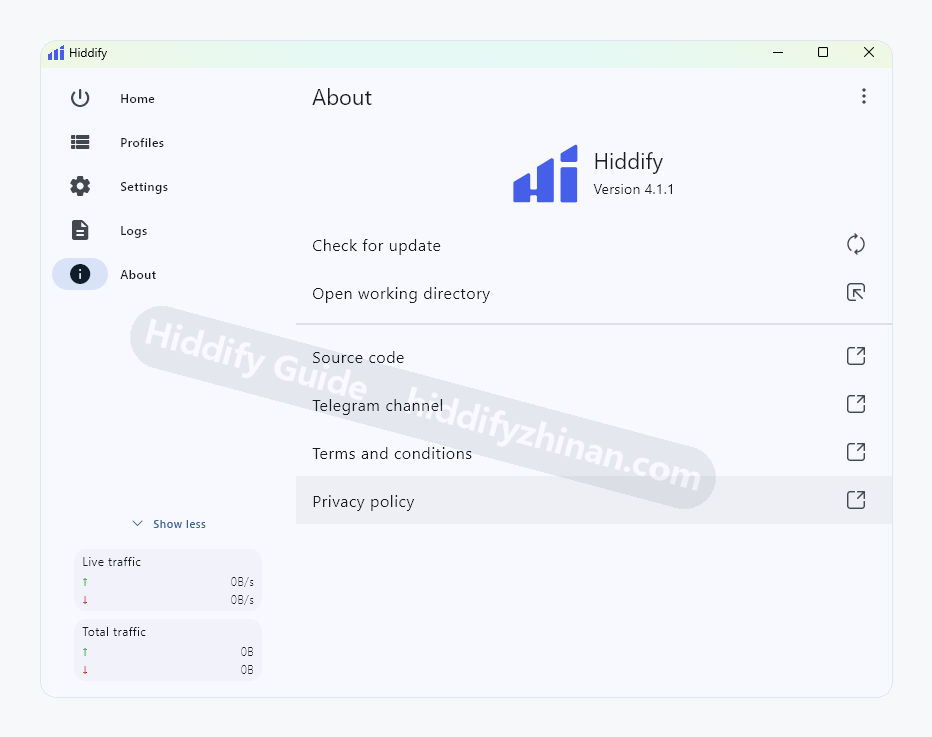
Settings Index
Open General, Routing, DNS, Inbound, TLS Tricks, or WARP from the Settings index for the task at hand.
- Default
- Open only the section required by the what you are doing; a first-time user does not need to change every setting.
- Change when
- Use it to locate a feature. The index itself does not change the connection.
- Verify
- The opened page title and controls match the intended feature.
- Recover
- Return to the Settings index if the wrong page opens; the connection state remains unchanged.
System Proxy and VPN Modes
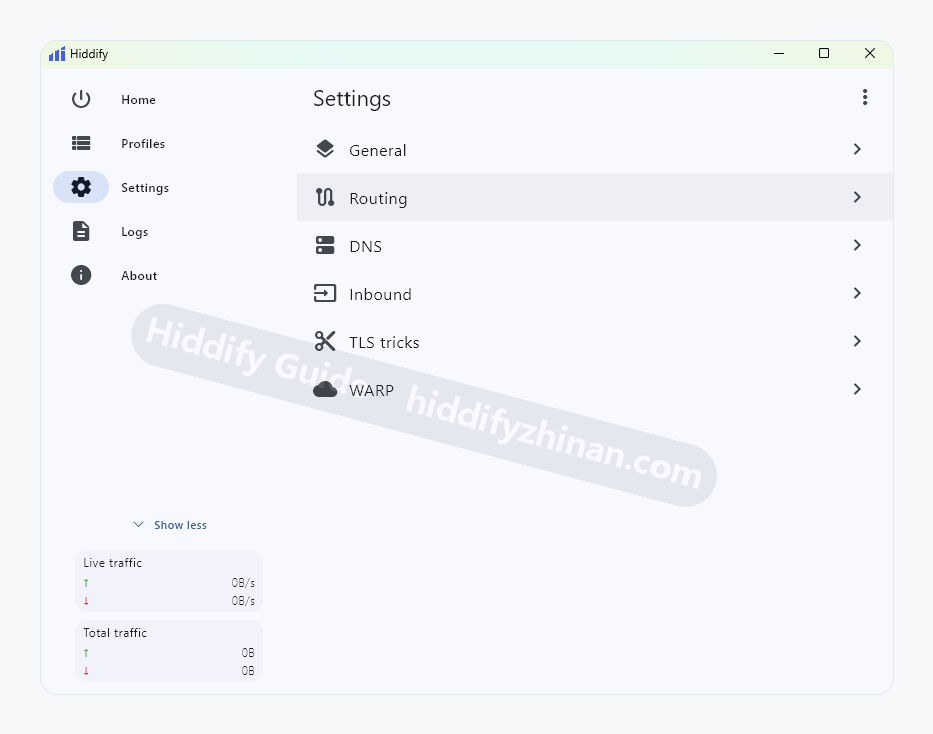
The dashboard mode menu switches among Proxy, System Proxy, and VPN. Verify a browser with System Proxy first, then evaluate VPN/TUN for apps that bypass it.
- Default
- Use System Proxy for the first browser test while keeping the proxy fixed and TUN off.
- Change when
- Check it when Hiddify is connected but a browser that follows system proxy does not use the expected path.
- Verify
- After restarting the browser, the same test page works and disconnecting restores the previous path.
- Recover
- Disable System Proxy and restore the prior mode if access gets worse.
General: Interface, Startup, and Logging
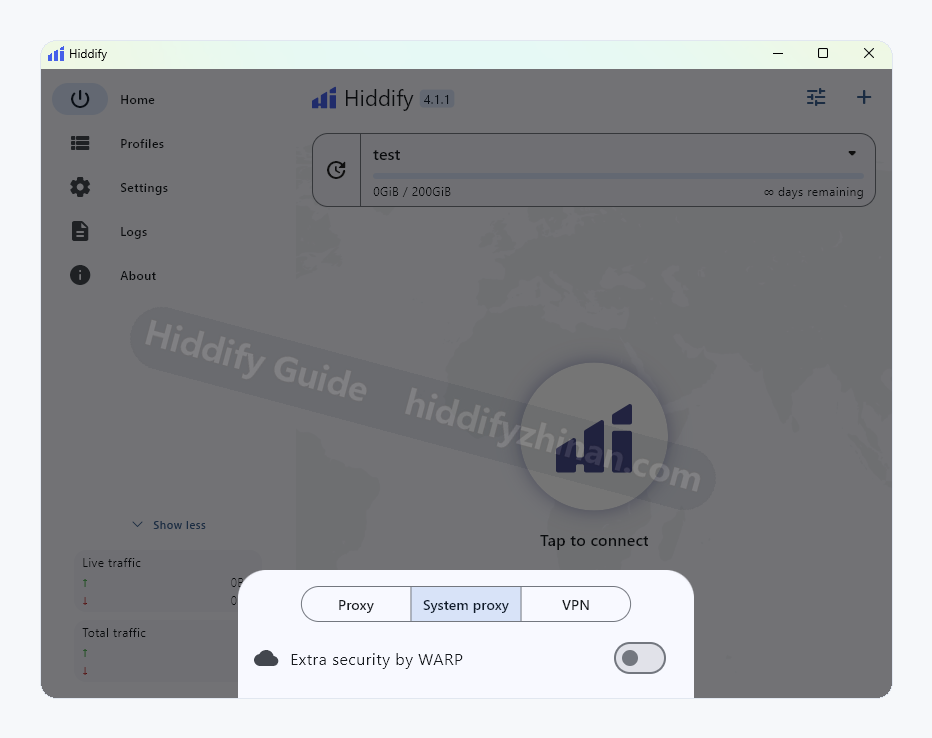
Configure language, theme, startup behavior, memory limits, debugging, and log level here.
- Default
- Choose language and theme as preferred; keep startup, memory, debug, and logging values unchanged without a specific need.
- Change when
- Change one item only for a clear startup, resource, or logging requirement.
- Verify
- Restart the app and confirm only the intended behavior changed.
- Recover
- Restore the recorded value and restart if launch or performance regresses.
General: Connection Tests and API
Connection test URLs, intervals, the Clash API port, and runtime core appear in the lower General settings.
- Default
- Keep test URLs, intervals, API port, and runtime core at their current values without a concrete requirement.
- Change when
- Adjust only for an unrepresentative latency test, a port conflict, or an external tool that explicitly needs the API.
- Verify
- Repeat the same test and confirm the port is available without degrading the connection.
- Recover
- Restore the original URL, interval, or port one item at a time.
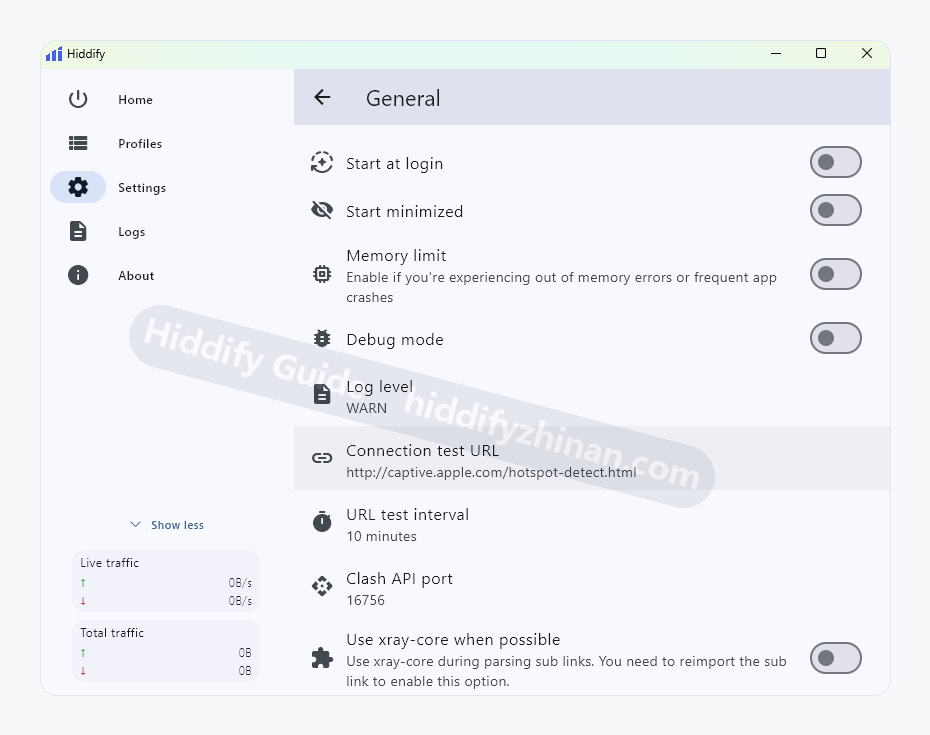
Theme Mode
Choose System default, Light, Dark, or Black for the interface. This setting changes appearance only and does not confirm a saved routing or connection state.
- Default
- Use System default unless a different appearance is needed.
- Change when
- Change it for readability or preference; it does not repair a connection.
- Verify
- The interface appearance changes while profiles and routing remain the same.
- Recover
- Return to System default if contrast or readability becomes worse.
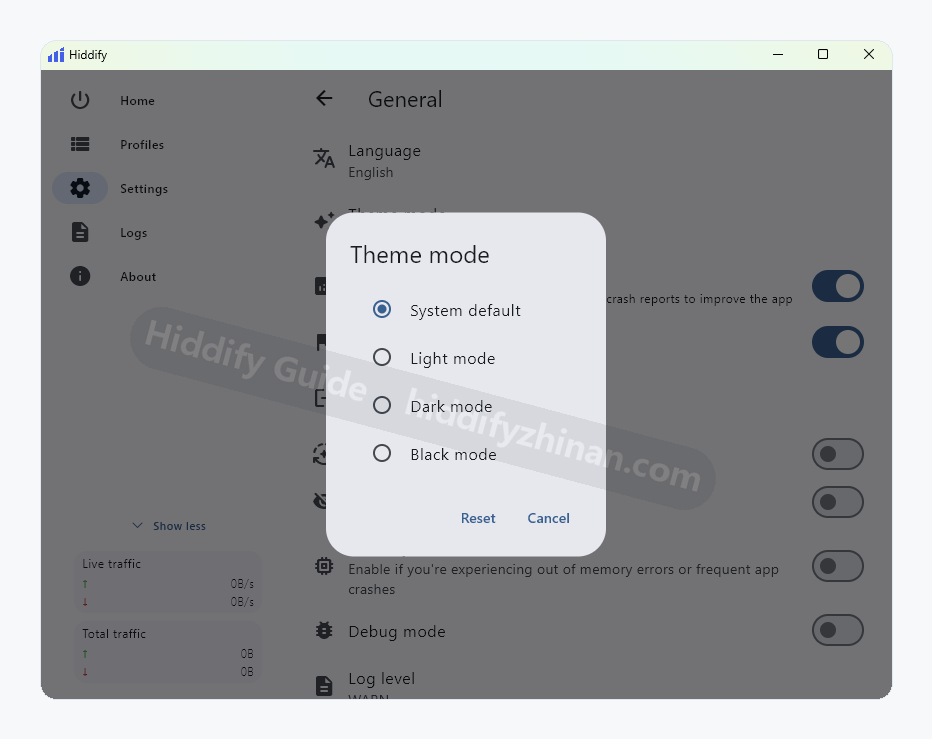
URL Test Interval
Set how often Hiddify retests proxy latency. Confirming the dialog changes the requested interval; it does not prove that a proxy can connect.
- Default
- Keep the current interval for normal use.
- Change when
- Adjust only when latency results become too stale or testing is unnecessarily frequent.
- Verify
- New tests run at the requested cadence without changing the selected proxy.
- Recover
- Restore the earlier interval if testing becomes noisy or resource-heavy.
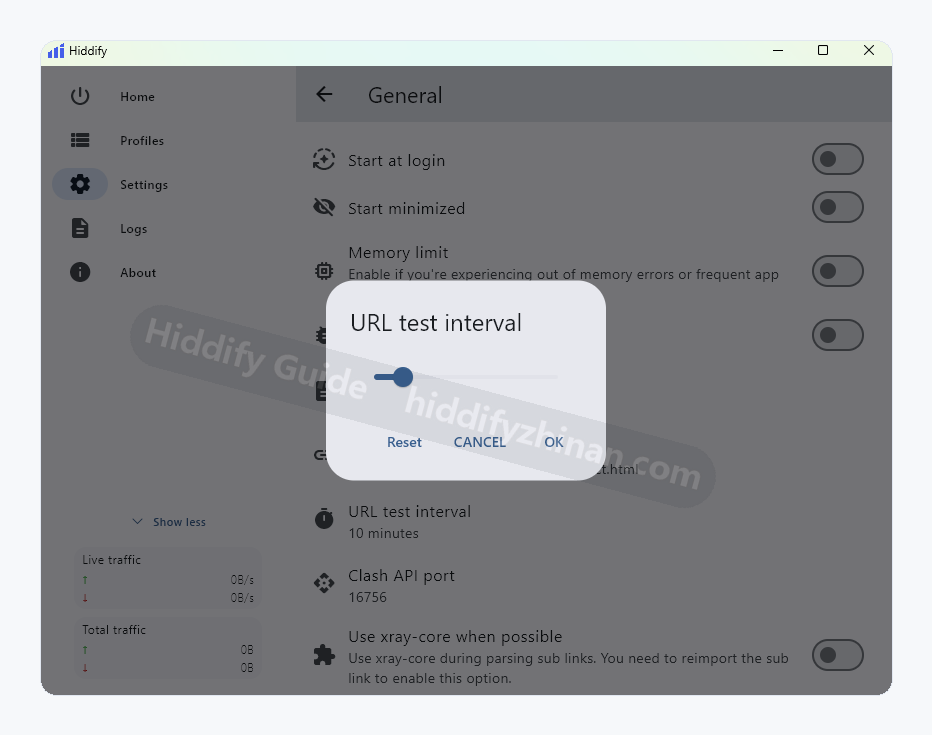
Clash API Port
Review or edit the local Clash API port. Check that the port is available before saving because the dialog alone cannot prove availability.
- Default
- Keep the current local port when no external integration needs it.
- Change when
- Change it only for a confirmed port conflict or a tool that requires another port.
- Verify
- The port is available and the intended local integration connects.
- Recover
- Restore the original port if the API or app core stops working.
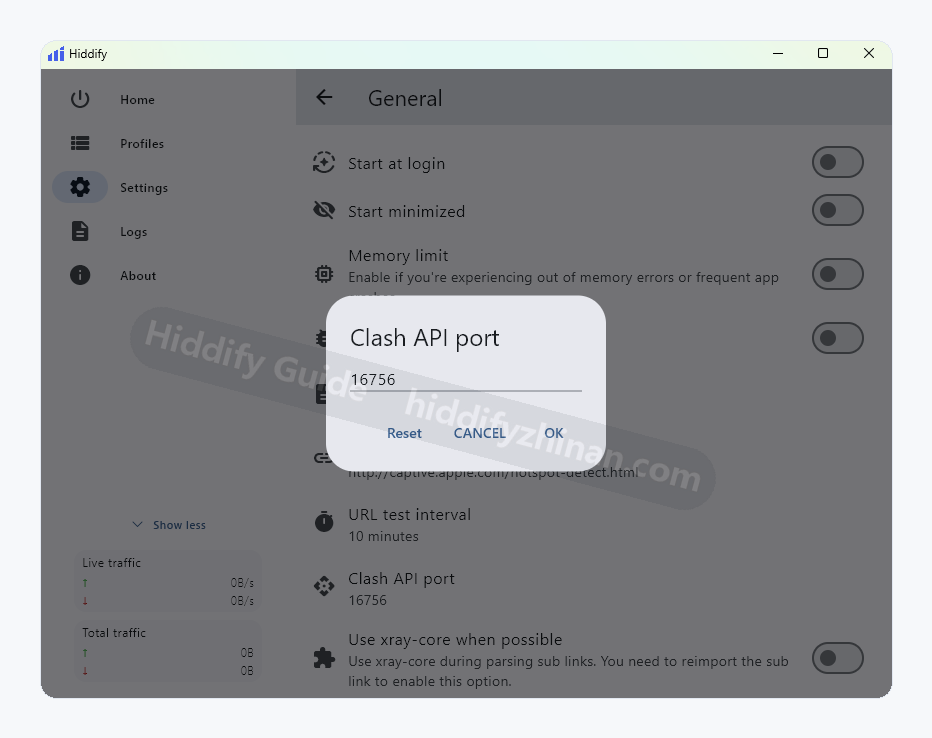
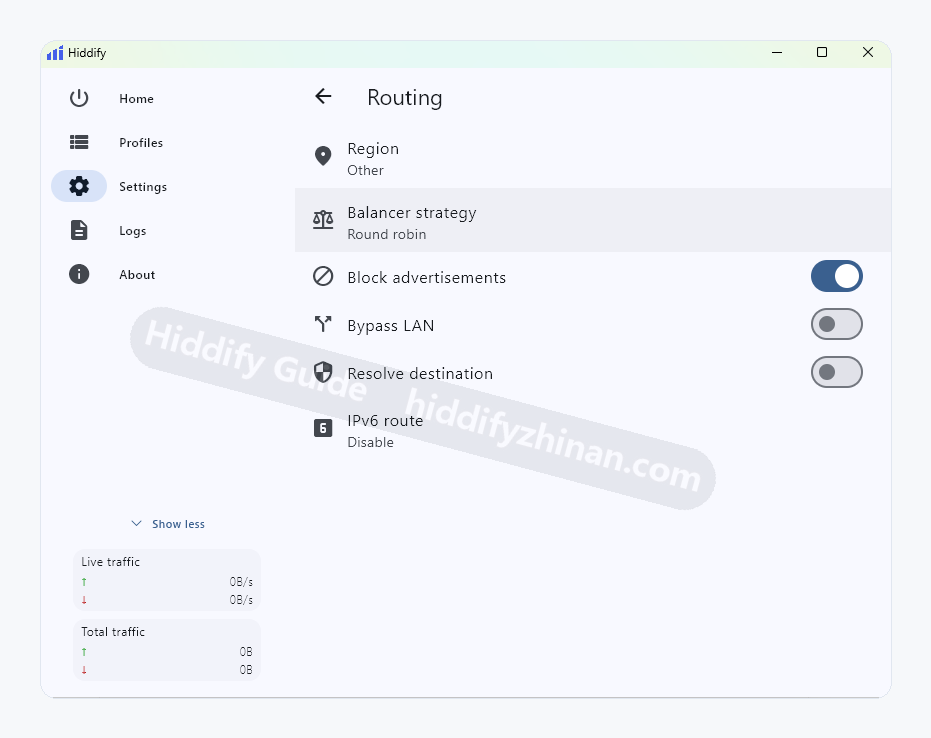
Routing Rules
Controls which traffic uses the proxy, direct path, or blocking. Change it only when a target domain or app follows the wrong path.
- Default
- Use the current rules for a normal connection instead of adding rules for speculative speed gains.
- Change when
- Change routing only when a specific domain or app takes the wrong proxy, direct, or blocked path.
- Verify
- Retest the same target and confirm other working traffic is unchanged.
- Recover
- Restore the original rules if the failure spreads to more traffic.
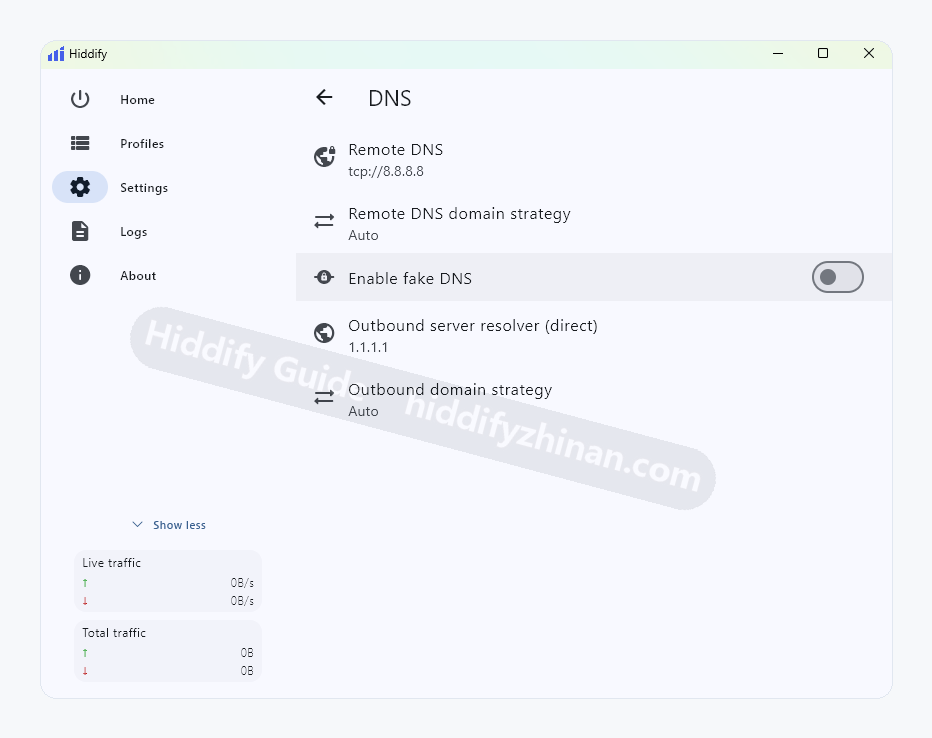
DNS Settings
Handles name resolution. Treat DNS as a troubleshooting branch only when names fail, IP access still works, or a clear resolution error appears.
- Default
- Keep the current DNS when normal access works; DNS is not a universal speed switch.
- Change when
- Use this branch when hostnames fail while IP access works or a clear resolution error appears.
- Verify
- The same hostname resolves without changing the proxy or routing mode.
- Recover
- Restore DNS and return to proxy or system-proxy checks if both IP and hostname fail.
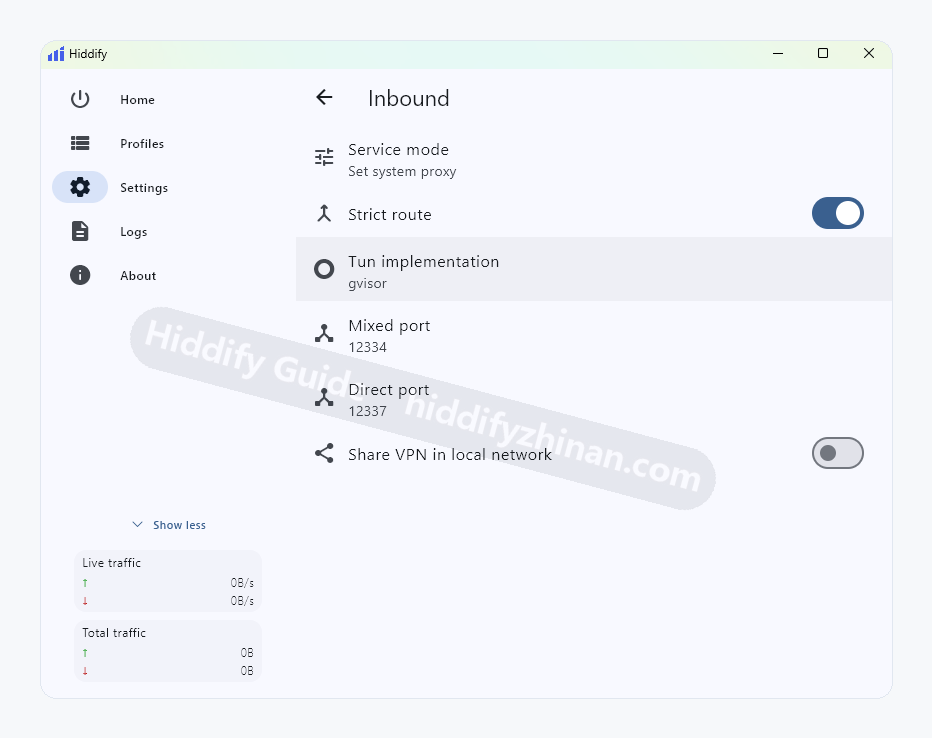
Inbound Settings
Provides local listen addresses and ports for apps. Keep defaults for normal first use and record occupied ports before customizing.
- Default
- Keep listen addresses and ports at their defaults unless a manual proxy or LAN share is required.
- Change when
- Check them when only a custom port, LAN share, or manually configured app fails.
- Verify
- The affected app connects through the recorded local host and port while other apps remain unchanged.
- Recover
- Restore defaults when custom inbound access is not required.
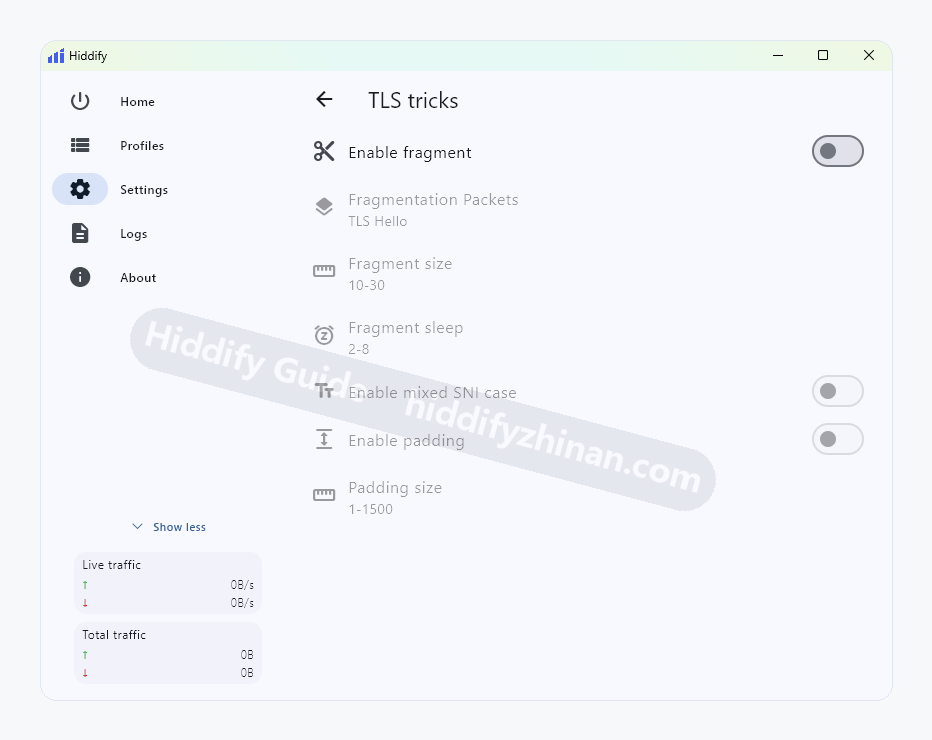
TLS Options
Use only when a certificate, handshake, or server requirement matches the visible symptom; it is not a general connection-failure switch.
- Default
- Leave extra TLS options off for a normal connection.
- Change when
- Use one only after proxy, routing, system proxy, and DNS pass and the error explicitly names a certificate or handshake problem.
- Verify
- The same TLS error disappears and other connections remain healthy.
- Recover
- Restore the original value immediately if there is no improvement or a new error appears.
WARP Settings
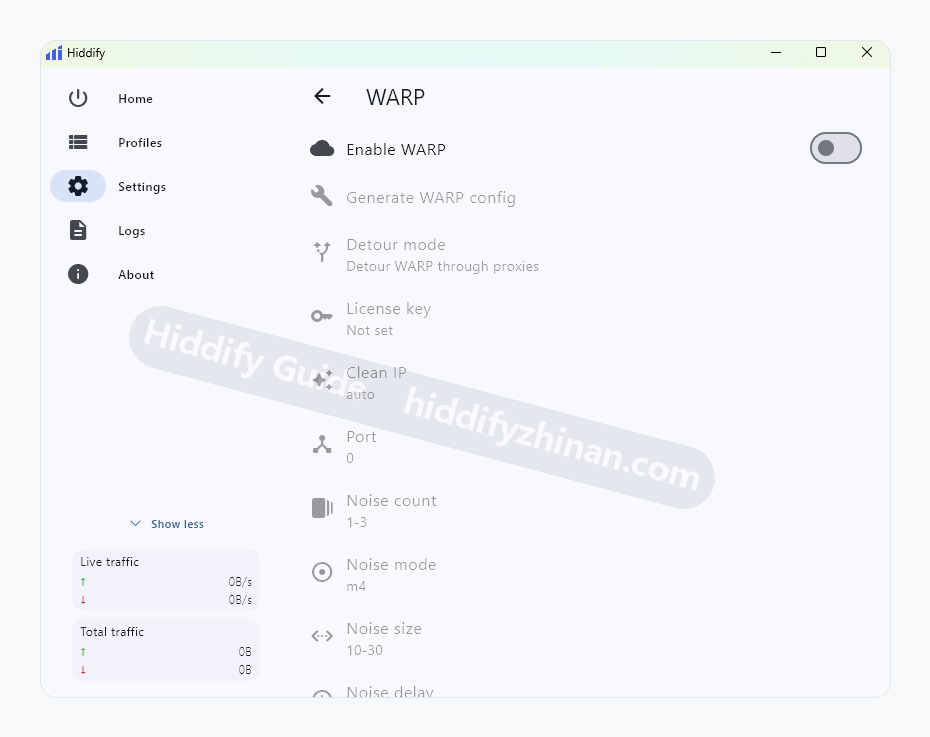
The WARP page manages enablement, config generation, route mode, license, optimized IP, and noise parameters.
- Default
- Keep WARP off or preserve its current state without a clear WARP task.
- Change when
- Configure it only when the profile or network plan requires WARP and the route, license, and optimized-IP choices are understood.
- Verify
- The intended path works without degrading ordinary proxy or local-network access.
- Recover
- Disable WARP and restore the prior configuration if routing or local networking breaks.
Logs and Error Records
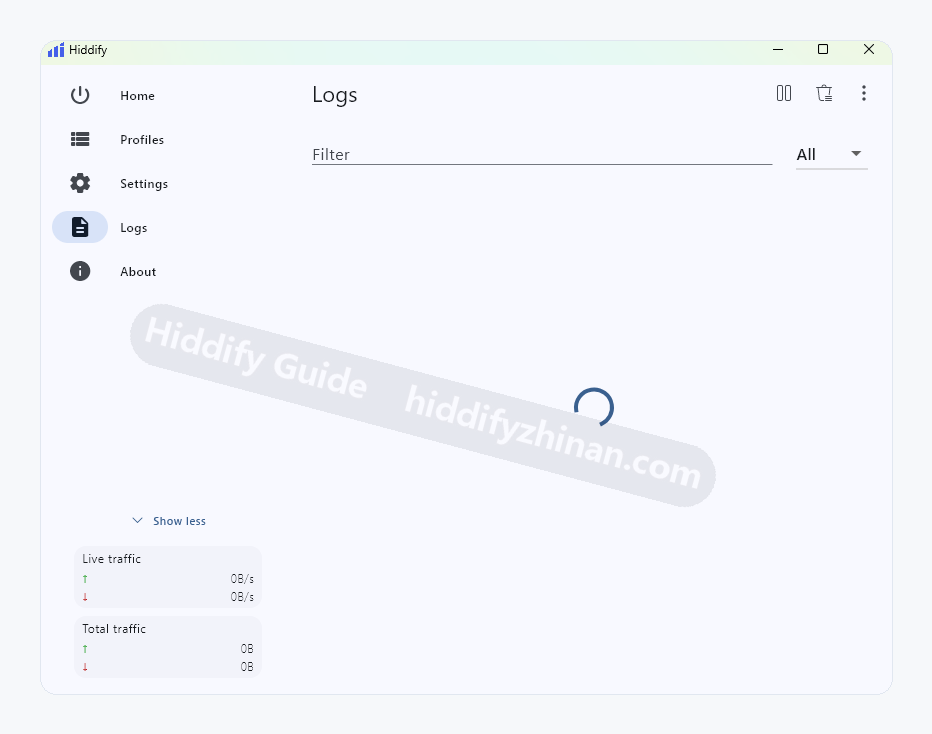
When a connection or update fails, filter entries from the failure time before choosing the matching troubleshooting branch.
- Default
- Do not leave elevated logging enabled for normal use.
- Change when
- Inspect entries from the failure time when connection, update, or core startup fails.
- Verify
- The error matches the visible symptom and time, pointing to a specific troubleshooting route.
- Recover
- Restore the usual log level after diagnosis and redact sensitive addresses before sharing.
Version and Project Links
The About page shows the installed version, update check, working directory, and project links.
- Default
- Use About to confirm the app identity, installed version, and update entry.
- Change when
- Open it before and after an update, when screenshots differ, or when the working directory is needed.
- Verify
- The displayed version matches the package just installed.
- Recover
- If it differs, return to the platform download page before changing connection settings.