

A closed window does not prove that the Hiddify connection has disconnected, so the app's status is the next check if the manual setting was already off.
This path is for ordinary direct access on a Windows PC. It does not diagnose a site that fails only while you are connected through Hiddify; use the Hiddify connection guide for that different state. Try one familiar ordinary site after each step, then stop when direct access returns.
Check whether Windows still points to your Hiddify proxy
If Hiddify closes while Windows still points to its manual proxy, ordinary browser requests can fail because that local endpoint no longer accepts traffic. That is one possible explanation, not a diagnosis from the symptom alone. Microsoft's current Windows proxy instructions distinguish manual settings from setup scripts and organization-managed configurations.
- Open Windows Settings → Network & internet → Proxy. Under Manual proxy setup, inspect Use a proxy server. Do not change Automatic proxy setup or a setup script just because it is present.
- Before editing, write down whether the manual switch is on, plus its address, port and any exception values shown. Keep that record privately. If you do not recognize the setting as one you enabled for Hiddify, stop here. On a managed PC, ask the person who administers its network settings.
- If the switch is on and you know it is your Hiddify proxy, select Set up, turn Use a proxy server off in the edit dialog, and Save. This is a test of that one known setting, not an instruction to clear every proxy on the machine.
- Close and reopen the affected browser. Open a familiar page that normally works without Hiddify. If it opens, ordinary direct access is restored. If it still fails, leave the setting at the test value for now and inspect the previous Hiddify connection mode. Restore the recorded original value if this was not Hiddify's setting or the change causes a new problem.
The Windows step does not erase profiles, subscription links, or browser extensions. If manual proxy was already off, do not toggle it repeatedly; there is no evidence that this switch caused your failure.
If you used VPN mode, inspect the Hiddify connection state
Hiddify has distinct System Proxy and VPN routing choices in the illustrated Windows 4.1.1 interface. The versioned Home screenshot uses Chinese labels: 系统代理 means System Proxy, while VPN is shown as VPN. It shows where to identify the mode, not what mode your PC used when connectivity failed. Your version may place it differently.
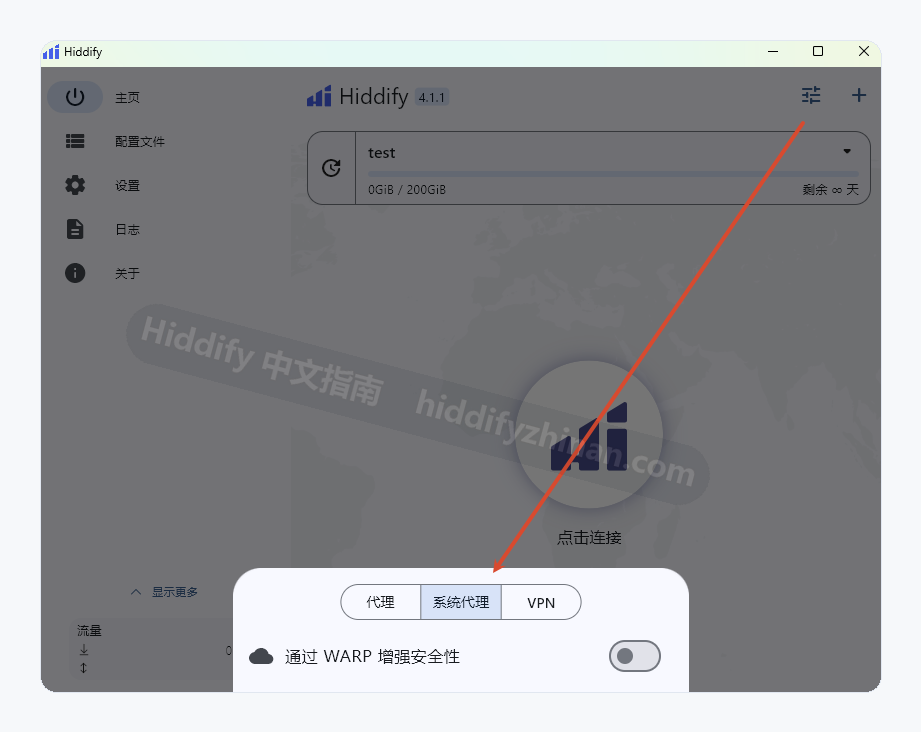
Versioned Hiddify 4.1.1 Home menu in Chinese: 系统代理 is System Proxy. The image identifies the mode choice; it does not establish the cause of this reader's outage.
If the Windows manual proxy was already off, or if you had used VPN mode, save any unsent work in your other apps and reopen Hiddify. Look at Home before pressing its connection button. If it still shows connected, disconnect normally and wait until it shows disconnected. If it already shows disconnected, do not connect simply to press Disconnect. Exit the app and retry the ordinary page in a newly opened browser.
Hiddify 4.1.1 also shows an action-on-close control in Settings → General. The Chinese screenshot labels it 关闭时操作, with 每次询问 (ask every time) selected. Closing a window and ending a connection are separate actions, so checking Home before you exit is clearer than guessing from a missing window. The screenshot illustrates that setting; it does not tell you how your own machine was configured.
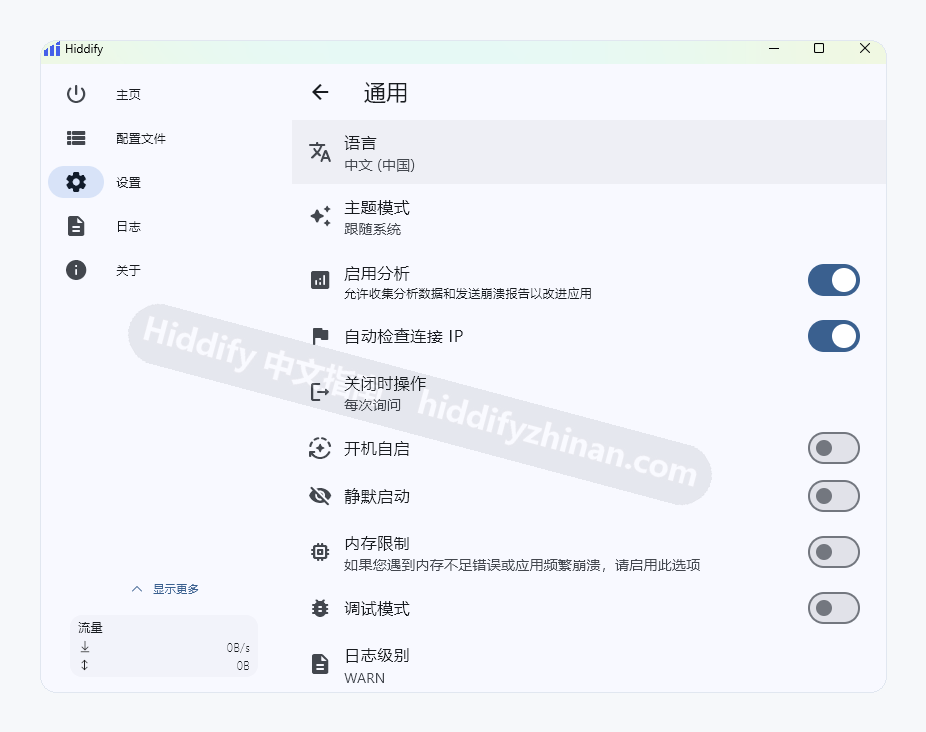
Chinese General settings in the illustrated 4.1.1 release: 关闭时操作 means action on close. Check Home for the actual connection state, then disconnect if needed.
The official Hiddify app guide describes the Home connection control and TUN as a separate routing option. If you need the conceptual difference, read Hiddify System Proxy versus VPN mode. Neither option calls for deleting another app's VPN or resetting Windows networking.
Use the failure range to choose the next check
If the ordinary page still fails after the Hiddify proxy and connection checks, inspect whether one browser, several apps, or another device on the same network is affected. A browser-only failure differs from a shared-network failure; follow the matching branch below instead of resetting the PC.
One browser fails, but another browser or app works: Inspect the failing browser's own proxy setting or an extension you installed. A browser-specific proxy can remain in effect even when the Windows manual proxy is off. Temporarily disable only an extension you control, reopen that browser, and retry the same ordinary page. Restore the extension if it was unrelated.
Several apps fail on this PC: On another device using the same Wi-Fi, try a familiar direct-access page. If that device still cannot open the page, check the shared connection or router with the network owner. The evidence no longer points specifically to Hiddify on this PC.
Another device works, but several apps still fail on this PC: The scope is local to this Windows computer. Use Windows connection diagnostics or your device administrator's help. Do not reset adapters, DNS, the firewall or other VPNs merely because Hiddify was recently closed. Those changes can remove working configurations without identifying the cause.
Ordinary pages work again, but only a destination that needs Hiddify fails: Direct access has recovered. Reconnect only when you intend to use Hiddify, then follow the connection troubleshooting guide for the proxied destination. This article's stop condition has already been met.
If that connected session still fails and you need an error trace, collect Hiddify logs for the active connection. Logs belong to that later diagnosis, not the first after-exit Windows check.
Confirm direct access and preserve the original setting
The narrow success signal is a familiar ordinary page opening in a freshly started browser while Hiddify shows disconnected or has been normally exited. A single app status label, without the page test, is not enough. If this check fails, record whether it fails in one browser, several apps on one PC, or multiple devices on the network; that observation determines the next route.
Keep the manual proxy's original state and values until the cause is clear. If you discover the setting belonged to an organization or another service, restore the value you recorded and stop editing it. If you changed only your own Hiddify proxy and ordinary pages now work, there is no need to expand into system-wide network changes.
Questions after Hiddify closes
Should I turn off every Windows proxy setting?
No. Only turn off a manual proxy that you personally enabled for Hiddify and whose original state you recorded. An organization, setup script, VPN connection, or another app may need its own proxy. Leave settings of unknown origin alone.
What if I used VPN mode and manual proxy is already off?
Reopen Hiddify and inspect Home. Disconnect only if it still shows connected, wait for the disconnected state, exit normally, and retest an ordinary direct-access page. If the app was already disconnected and the page still fails, use the browser/device range checks above.
Why does only one browser still fail?
That browser may have its own proxy configuration or an extension you installed. Check those browser-level controls before touching a Windows-wide setting. Test the same ordinary page in another browser to see whether the failure is actually local to one application.
When the ordinary page works again, you can stop. Keep the original setting record until you know the change was appropriate, and use the English Hiddify article index for a different task rather than changing unrelated network controls.