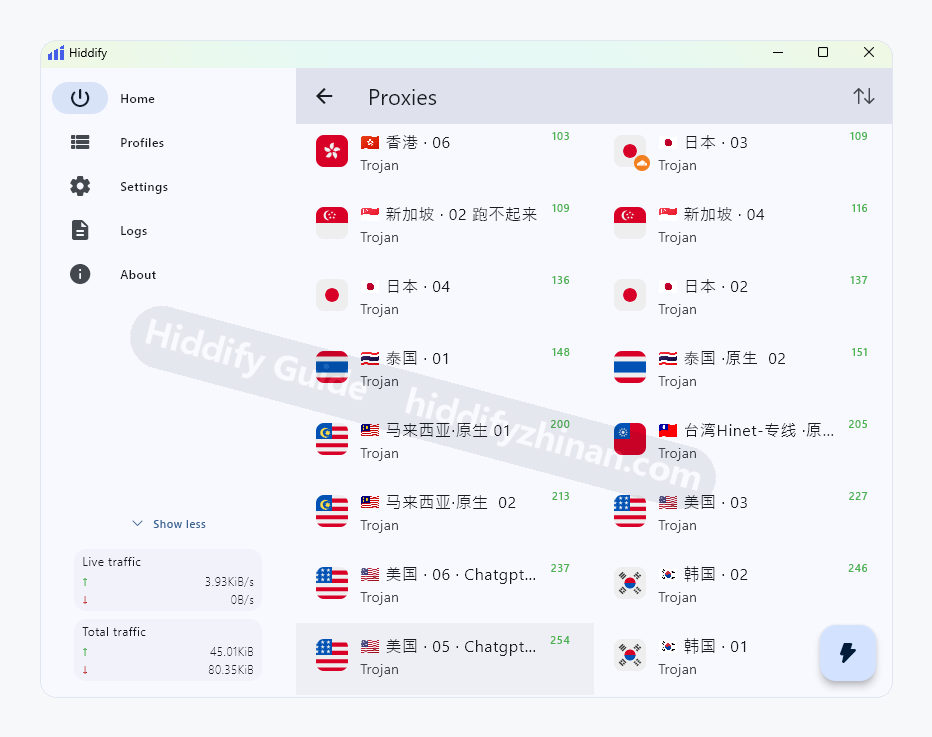
Identify the State Before Changing Settings
No profile, refresh error, successful refresh with an empty list, and visible but unresponsive proxies are different failures. Follow only the state on screen so duplicate imports, routing changes, or DNS edits do not erase the evidence.
Why the state matters: re-importing can address a missing profile or bad URL, while changing a proxy applies only after proxies exist. Routing-mode changes cannot create proxies after a successful but empty refresh.
01
No Profile on the Dashboard
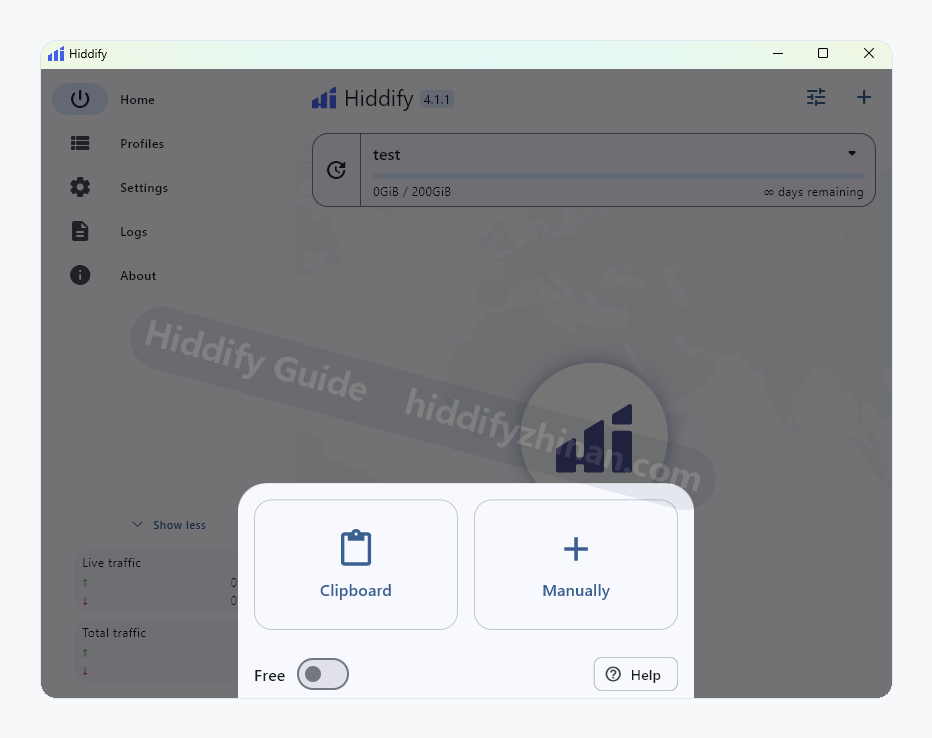
what you see on screen: The dashboard shows no profile name, update time, or proxy entry.
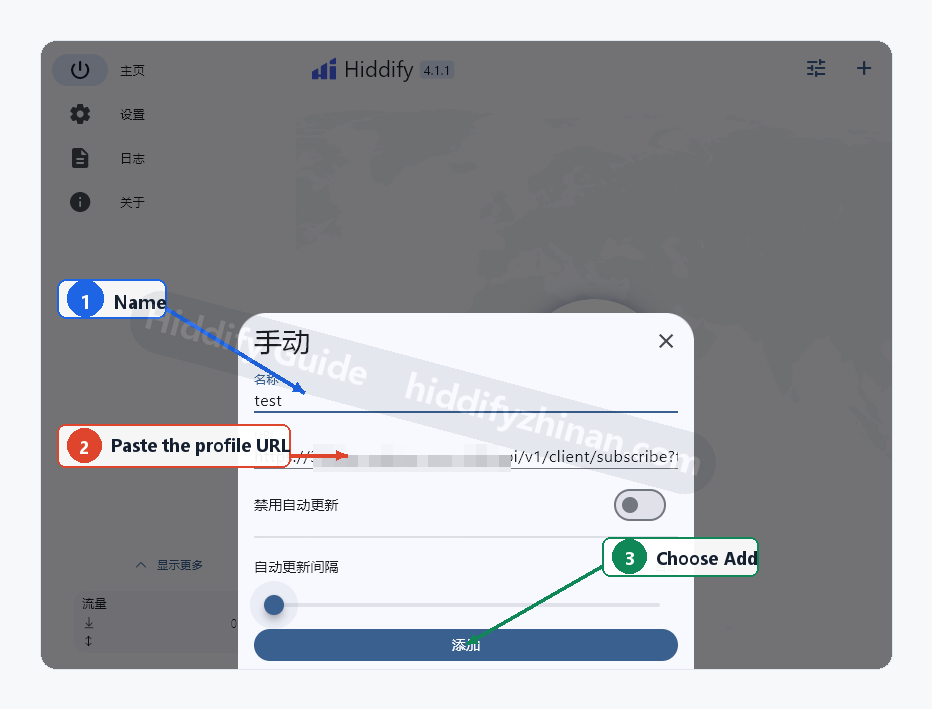
Action: Import the complete profile URL again and confirm it was not truncated or padded with spaces. Submit it once, then wait for a profile name and update time. If no profile appears, preserve the error and verify the address status instead of creating several profiles with the same name or changing routing mode.
Success: A profile name and proxy entry appear on the dashboard.
Recovery: If import still fails, preserve the error and do not change routing mode, DNS, or TUN.
02
The Profile Exists but Refresh Fails
what you see on screen: The profile remains, but manual refresh shows an error and the update time does not change.
Action: Recheck the complete URL, system time, and basic network, then retry the same profile once. Observe the exact error and whether the update time changes, and retain the existing profile for diagnosis. If it still fails, preserve the result and confirm the URL with the provider instead of changing DNS or TUN.
Success: The update time changes and the proxy list reloads.
Recovery: If it still fails, keep the error and existing profile, then confirm the URL status with the profile provider.
03
Refresh Succeeds but the List Is Empty
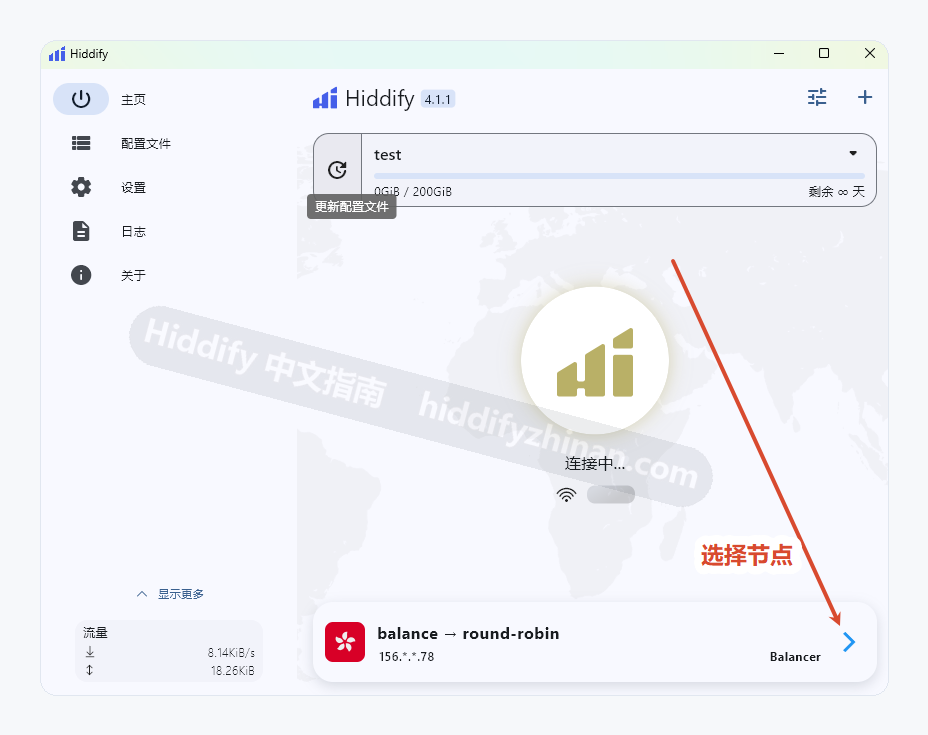
what you see on screen: The update time changes, but opening the proxy entry shows no selectable items.
Action: Return to the dashboard and confirm that the newly refreshed profile is active, then reopen the proxy list; routing-mode changes cannot create missing proxies. If the update time changed but the correct profile remains empty, record the profile and result. The content may be empty, expired, or unsupported and needs provider-side verification.
Success: The active profile shows at least one proxy.
Recovery: If the correct active profile refreshes but remains empty, its content may be empty, expired, or unsupported and needs provider-side resolution. Preserve the profile name, update time, and empty-list result for that check. Do not delete the only diagnosable profile or try duplicate imports, routing changes, DNS, or TUN to manufacture proxies that were not delivered.
04
Proxies Appear but None Respond
what you see on screen: Proxy names appear, but latency is blank, timed out, or every item is unusable.
Action: Keep the current profile, refresh latency once, choose one proxy, and confirm that the device can access an ordinary page. When one proxy responds, keep it selected and continue to connection verification. If all time out, preserve the list state and move to network and connection troubleshooting instead of importing duplicate profiles.
Success: At least one proxy responds and can be selected.
Recovery: If every proxy times out, keep the current profile, update time, proxy list, and latency result, then enter Connection Failure for the base network and routing checks. Retest one proxy before asking the provider to confirm its status. Do not delete a profile that still refreshes, and do not change DNS and TUN together while diagnosing proxy reachability.