

Why TUN Comes After a System Proxy Test
TUN can capture more traffic from apps that ignore operating-system proxy settings, but it also adds permission, DNS, LAN, routing, and other-VPN settings that can conflict. Verify the same proxy through System Proxy first so later failures can be isolated. Record every related value, then test the affected app, browser, and local network. Disable TUN and restore the baseline after any regression; broader coverage is not automatically better.
- 01
Complete a Normal Connection First
Verify the profile, selected proxy, and a real browser request through System Proxy first so a base connection problem is not mistaken for TUN. Keep the same proxy and test page, and record connection, DNS, local-network, and other-VPN state. Do not enter TUN settings until that baseline can be reproduced reliably. After switching, check system traffic, local-network access, DNS, and the affected app separately; if one fails, return to System Proxy to restore service before isolating that branch.
- 02
Open the Settings Index
Open Settings, then choose Inbound or Routing. The index screenshot identifies each section. Labels can vary by version, so use icons and neighboring controls as well as text. Inspect and record the existing values first. Do not change a port, DNS, or route merely while locating the TUN control.
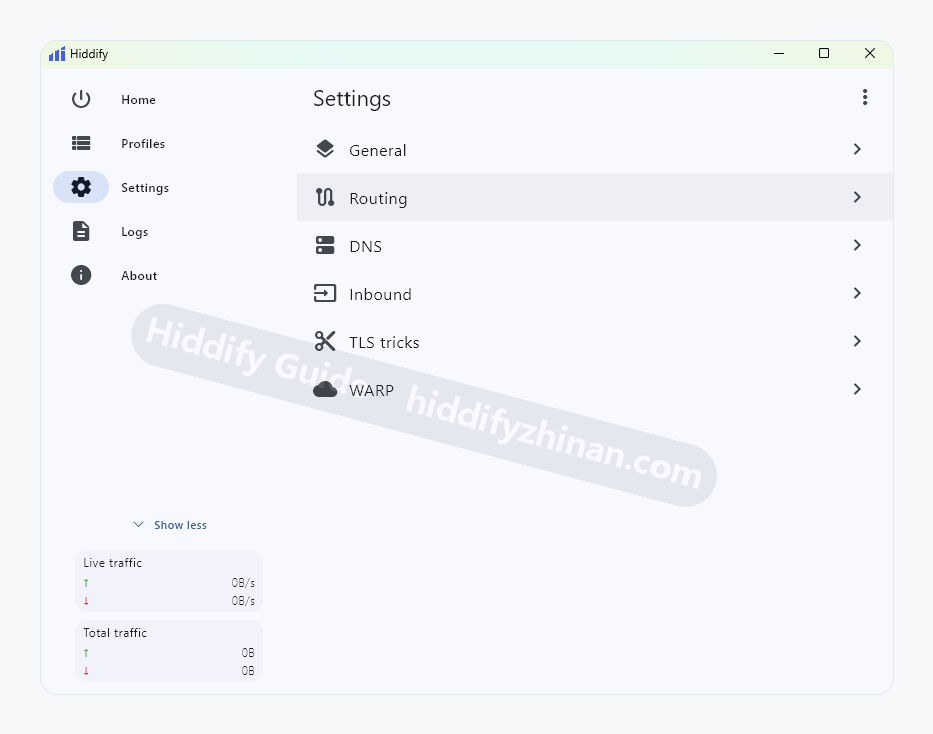
Open the settings section needed for what you are doing. - 03
Review Service Mode and TUN Implementation
In Inbound settings, record the current service mode and TUN implementation without changing local ports or LAN access. Read any operating-system permission request and grant only what this mode needs. If permission is denied, preserve the message and return to the recorded state instead of disabling system-wide protection.
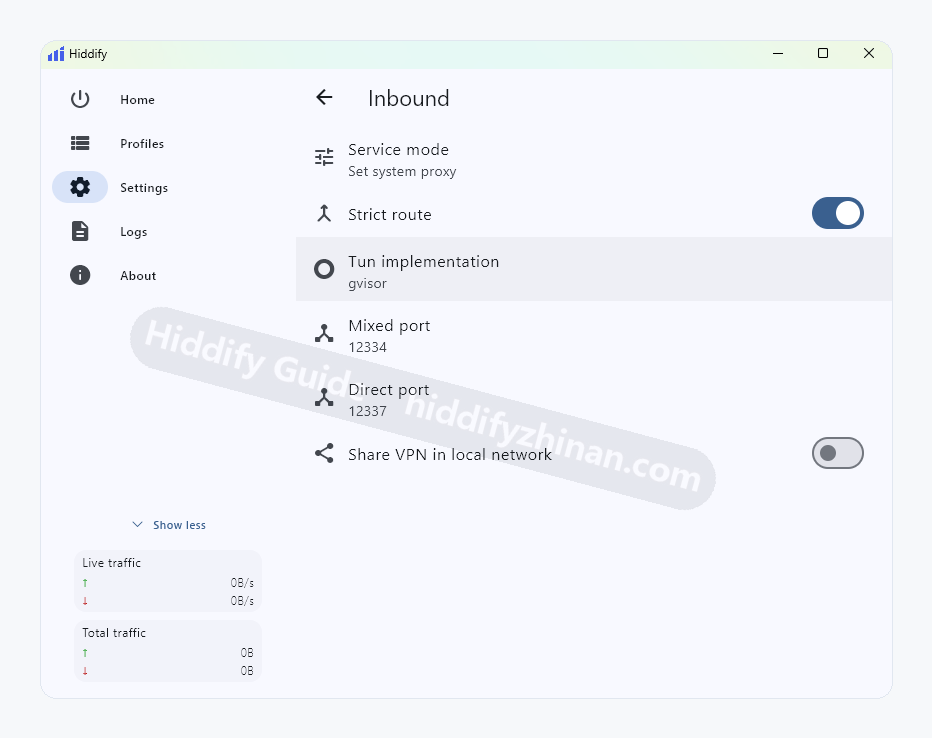
Inbound settings for service mode, TUN implementation, local ports, and LAN access. - 04
Choose VPN/TUN Mode
Choose VPN or TUN from the dashboard mode menu. A historical build may show Enable TUN in Settings; use the callout to locate the equivalent control without changing ports or DNS. Keep the selected proxy fixed. If Hiddify disconnects immediately or permission fails, disable TUN and restore the recorded values.
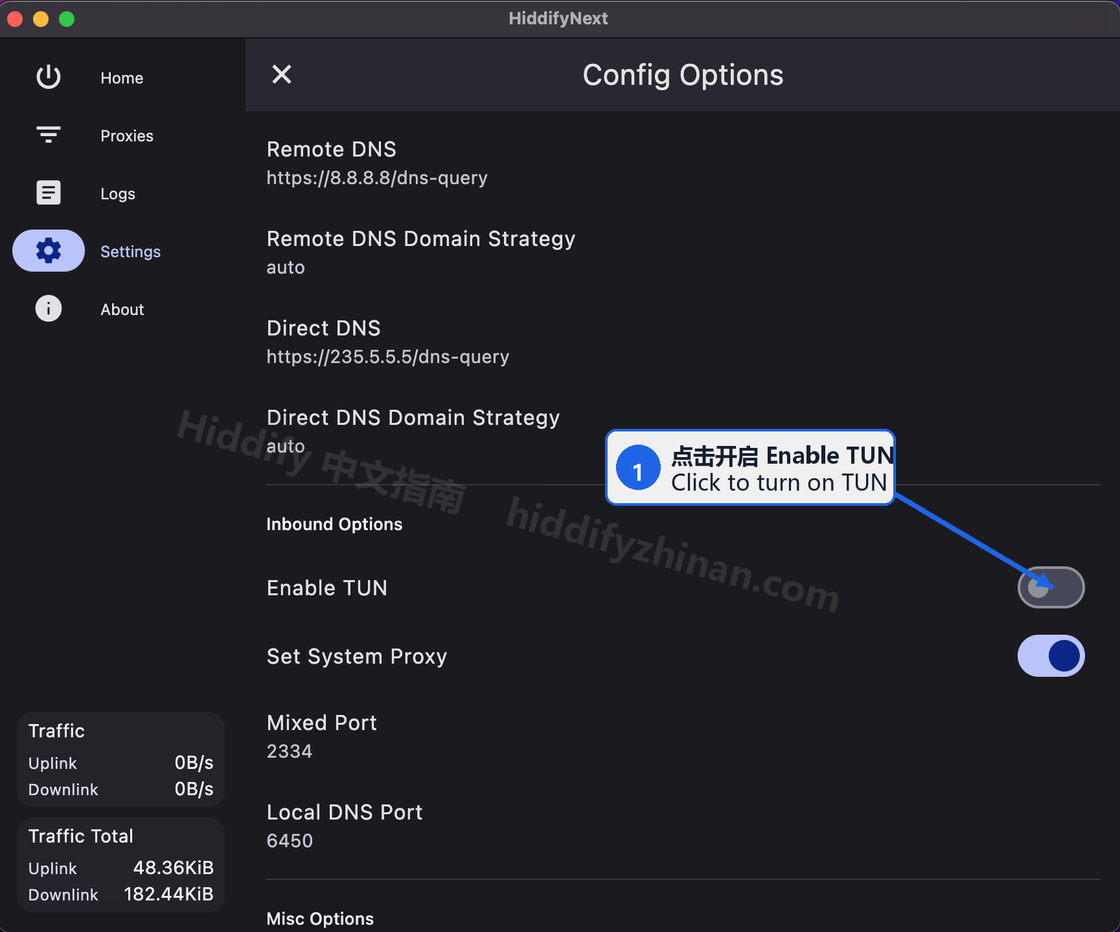
The historical UI uses Enable TUN; a current build may expose the same task through the dashboard VPN or TUN mode. - 05
Check Routing Settings
Confirm that routing matches the affected app, then adjust only one relevant option. The intended target should follow the proxy rule while local resources and explicit direct tasks remain reachable. If the correct rule is unclear, keep the default and test the same target; do not rewrite the entire routing table for one failure.
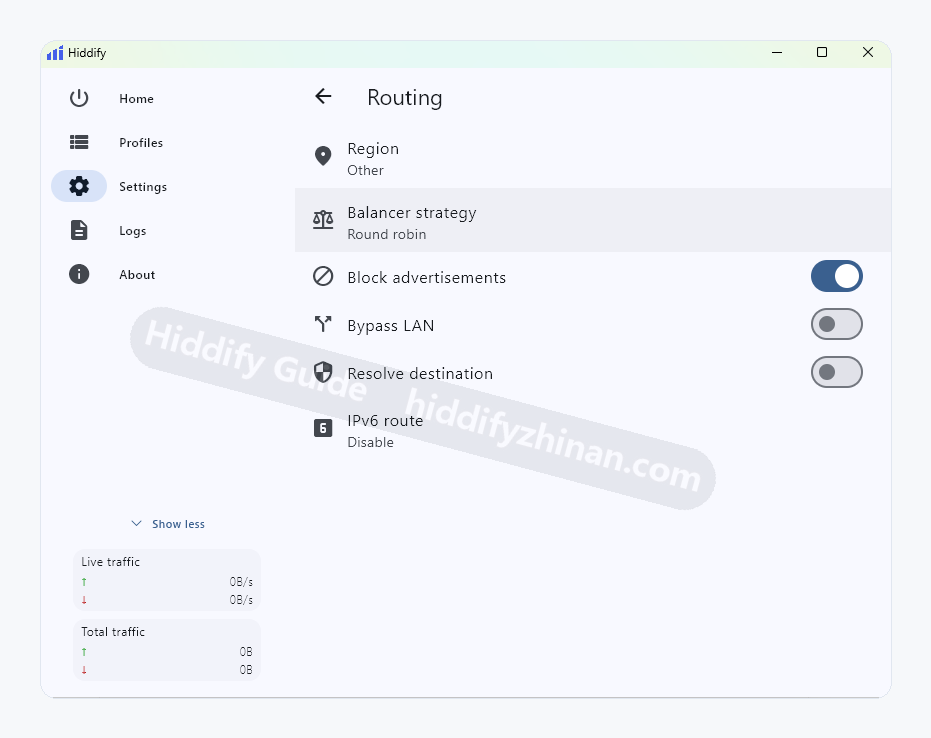
Routing settings for region, Balancer policy, LAN bypass, and IPv6. - 06
Retest and Keep a Recovery Path
Reconnect and test the affected app, the usual browser, hostname resolution, and local-network access in that order. Each check must make a real request; a Connected label is insufficient. On conflict, disable TUN, restore service mode, routing, and DNS, then restart Hiddify. Continue only after the baseline returns.
Check the result: The affected app completes a real request, while the browser, DNS, local network, and other required connections remain normal. Disabling TUN should restore the previous path. Keep the configuration only when all those results hold, and record the selected proxy plus the TUN values that produced them.
Recovery: If the target, DNS, local resources, or another VPN breaks, disable TUN, restore the recorded service mode, Inbound, Routing, and DNS settings, and restart Hiddify. Confirm that the System Proxy baseline works again. Then enter connection troubleshooting for the single symptom that remains instead of stacking more changes.