

Before importing
Prepare the Complete Profile URL, Then Open Add Profile
Copy the complete profile URL from the provider and open Add Profile on the Hiddify dashboard. Read it from the clipboard when the full URL is already copied, or choose Manually and paste it. Wait for the profile name to appear before opening the proxy list, and do not change routing mode, DNS, or TUN while an import failure is unresolved.
Profile URL, Profile, and Proxy Are Different Things
Profile URL
The complete provider URL used to retrieve a profile; keep token-like values private.
Profile
The saved record that Hiddify refreshes; its name appears on the dashboard after import.
Proxy
A selectable connection entry loaded from the profile; having a profile does not guarantee a populated list.
Interface steps
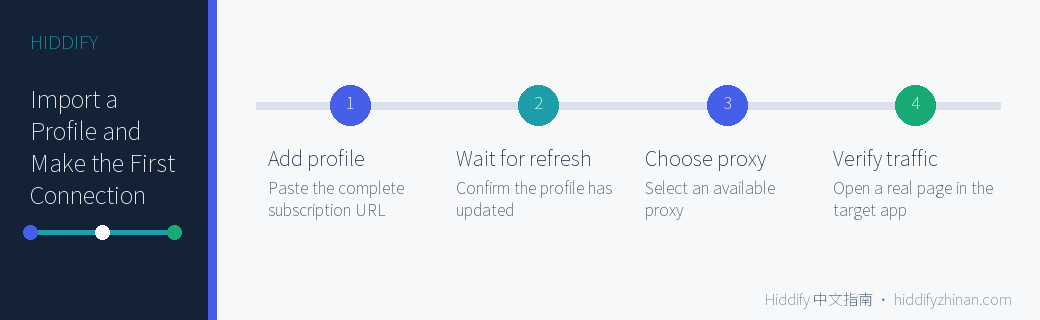
Import a Hiddify Profile and Complete the First Connection
- 01
Prepare the Complete Profile URL
Copy the complete profile URL. Do not expose token-like values in public pages, screenshots, or support requests.
- 02
Open the Add-Profile Sheet
Choose Add profile from the dashboard. Read the complete URL from the clipboard or continue to manual entry. Before submitting, confirm that messaging software did not truncate it or add spaces. Wait for the profile name and update time afterward. If neither appears, preserve the message and recheck the URL instead of creating duplicate profiles.
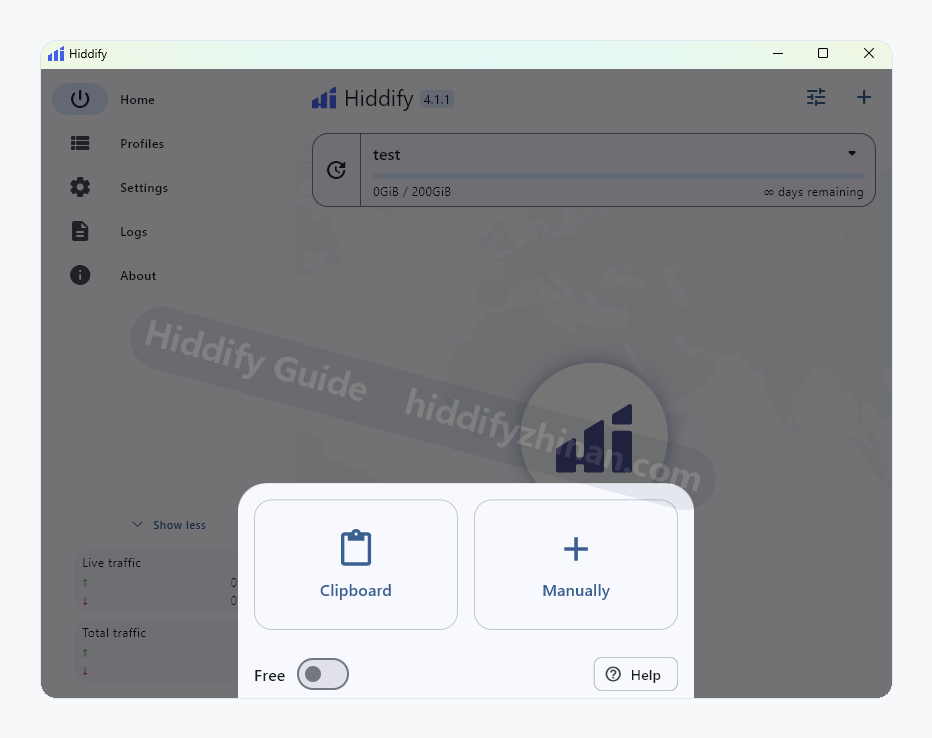
Add a profile from the clipboard or enter it manually. How to confirm: Clipboard and manual options are visible.
- 03
Paste the URL Manually
For manual entry, paste the complete URL and confirm. The address in this screenshot is redacted.
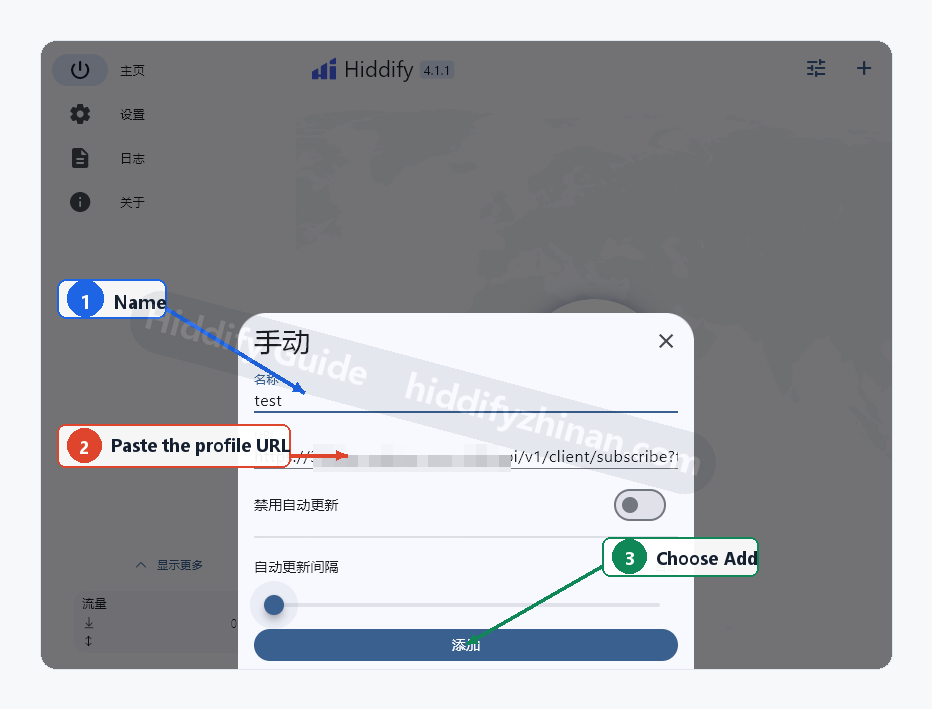
Enter a name, paste the complete profile URL, and choose Add; the sensitive URL remains redacted. Check the result: A new profile appears on the dashboard.
Recovery: If no profile appears, recheck whether the complete URL was truncated or padded with spaces and submit it only once more; do not change routing mode first. Preserve the Add profile error and network state if it still fails, then confirm the address status. Duplicate imports create confusing records and do not repair the original failure.
- 04
Confirm the Profile Appears
After the profile name appears, open the proxy list from the current-proxy area. If the profile is missing, return to import. When the name exists but the update time does not change, refresh once. If refresh succeeds but the list remains empty, preserve that result and enter Missing Proxies instead of enabling TUN.
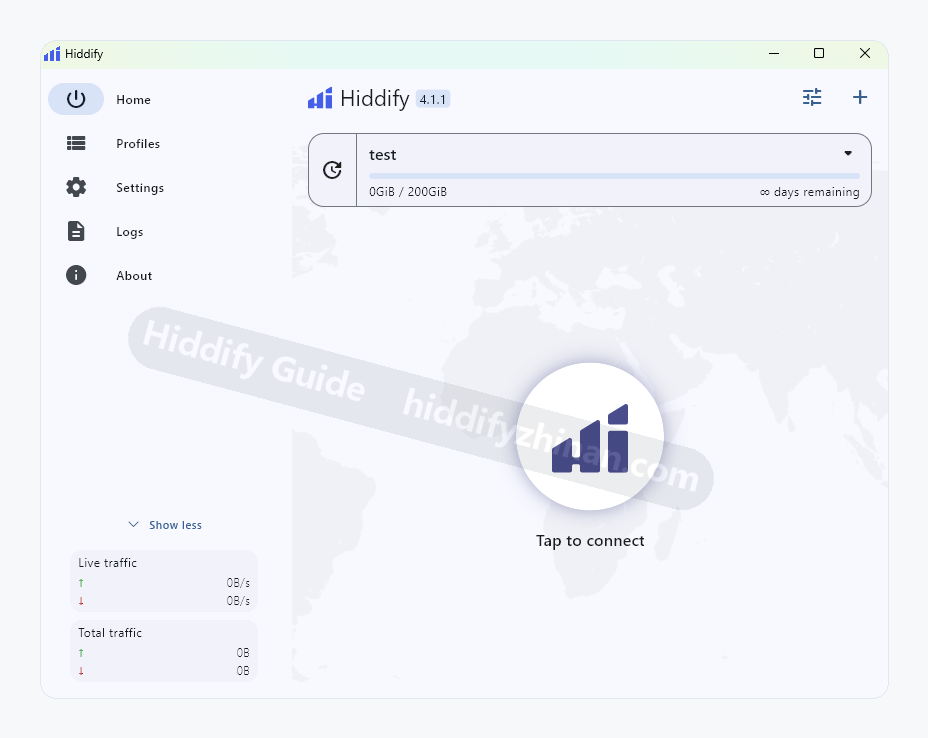
The profile is present and the app is ready to start a connection. - 05
Open the Proxy Selector
Select the current proxy area to open the list. The red arrow marks the target control.
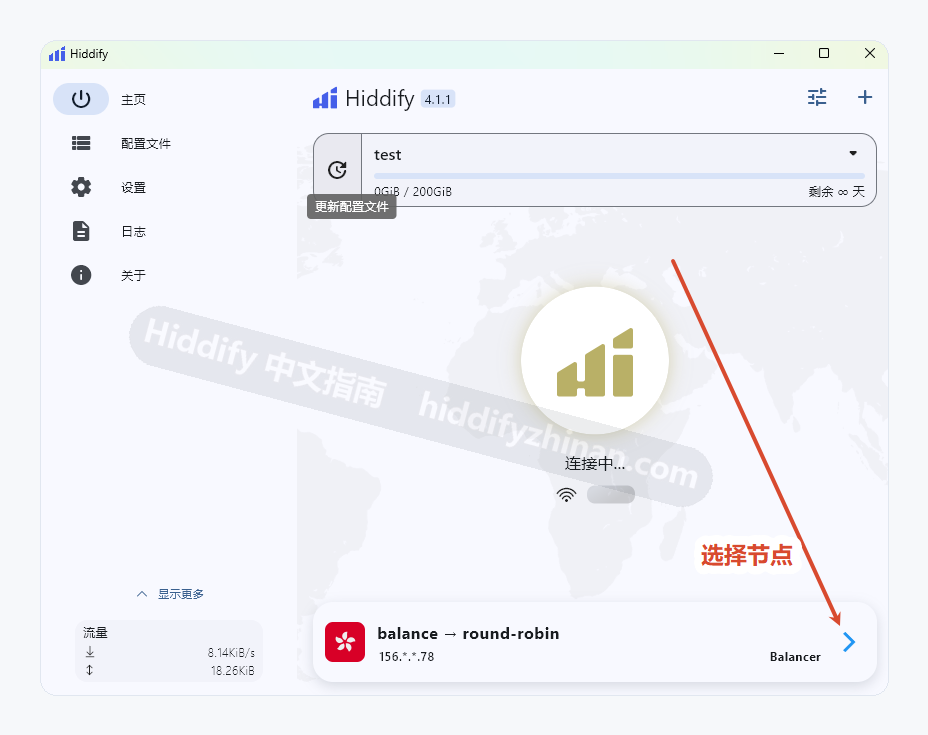
Open the proxy list from the current-proxy area on the dashboard. After this step: The proxy list opens.
- 06
Choose One Proxy
Choose one responsive proxy and return to the dashboard. Do not change the proxy, mode, and DNS together. Keep that proxy selected during the first connection and load a real page in the affected app. If every proxy times out, preserve the list state and enter connection troubleshooting rather than importing the profile again.
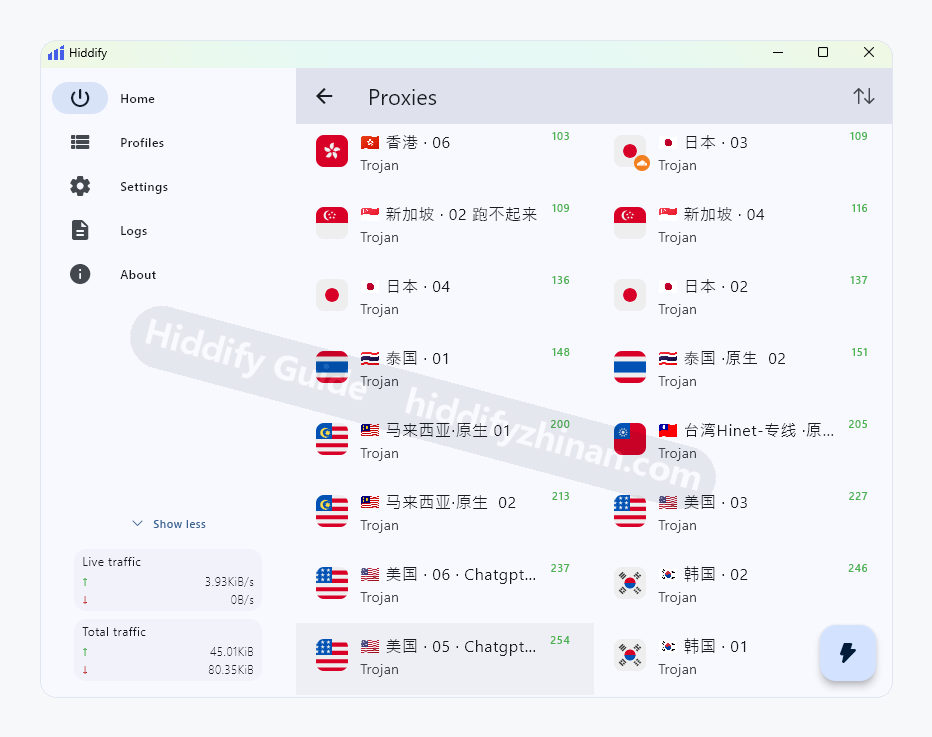
Choose a responsive proxy, then return to the dashboard to connect. What success looks like: The selected proxy appears on the dashboard.
- 07
Connect and Verify Real Access
Start the connection, wait for a stable state, and confirm that the selected proxy did not change, then load a real page in the target browser or app. Connected is an intermediate signal. Finish only when the request succeeds and disconnecting restores the previous network path. On failure, restore the original mode and carry the fixed proxy plus error into connection troubleshooting.
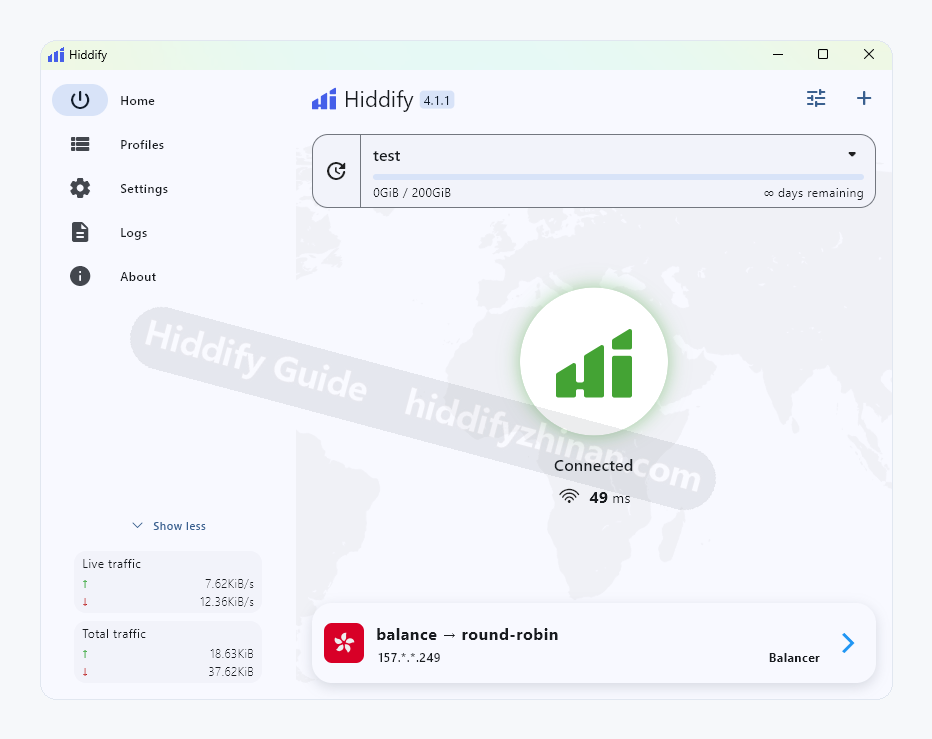
The app reports a connected state; verify real access in the target browser or app next. How to confirm: The dashboard remains connected and the affected app completes a real access test.
Recovery: On failure, disconnect, restore the prior mode, and open connection troubleshooting.
No Profile, No Proxies, or No Connection After Import
- Check the Hiddify profile and proxy list
No profile name on the dashboard
Return to Add Profile and confirm the URL was not truncated. Preserve the visible message if manual entry still creates no profile.
- Troubleshoot missing Hiddify proxies
The profile exists but the proxy list is empty
Check the last refresh time and result; a refresh error and a successful but empty profile require different branches.
- Troubleshoot a failed Hiddify connection
A proxy is selectable but the affected app cannot connect
Keep the current proxy and check connection state, system-proxy coverage, and DNS one at a time.