Your subscription supplies the profile used to reach the provider’s service. Choices stored locally in Hiddify may need separate attention, so it helps to distinguish those two parts before setting up the replacement computer.
What your subscription brings to the new PC
A subscription link imports a profile into Hiddify. That profile can populate the available nodes, but it is not a backup of Windows or every local Hiddify preference. For example, if you deliberately used TUN rather than System Proxy on the old computer, importing the subscription does not establish that the new installation has inherited the same local choice. Review TUN and System Proxy explained if that setting mattered to your old setup. Leave settings you never intentionally changed at their defaults.
Keep the old computer and its working profile unchanged while setting up the replacement. This gives you a usable fallback if the new installation imports the profile but cannot yet carry traffic. There is no need to copy an unknown Hiddify data directory or clear the old profile before the new one works.
Use our Hiddify for Windows download page to choose the installer that matches the new machine’s system and architecture. Use the release offered on that page rather than choosing a download by the version visible in a screenshot.
Next, sign in to your own provider account on the new computer and obtain the complete private subscription link. Copy that link to the clipboard before opening the import controls below. An account-management page address is not the same thing as a subscription URL. Keep the subscription private: do not paste it into public messages or online conversion sites.
Import the subscription in Hiddify
The quickest route uses the clipboard. Hiddify’s official app guide also identifies the Home add control and the available profile-import methods.
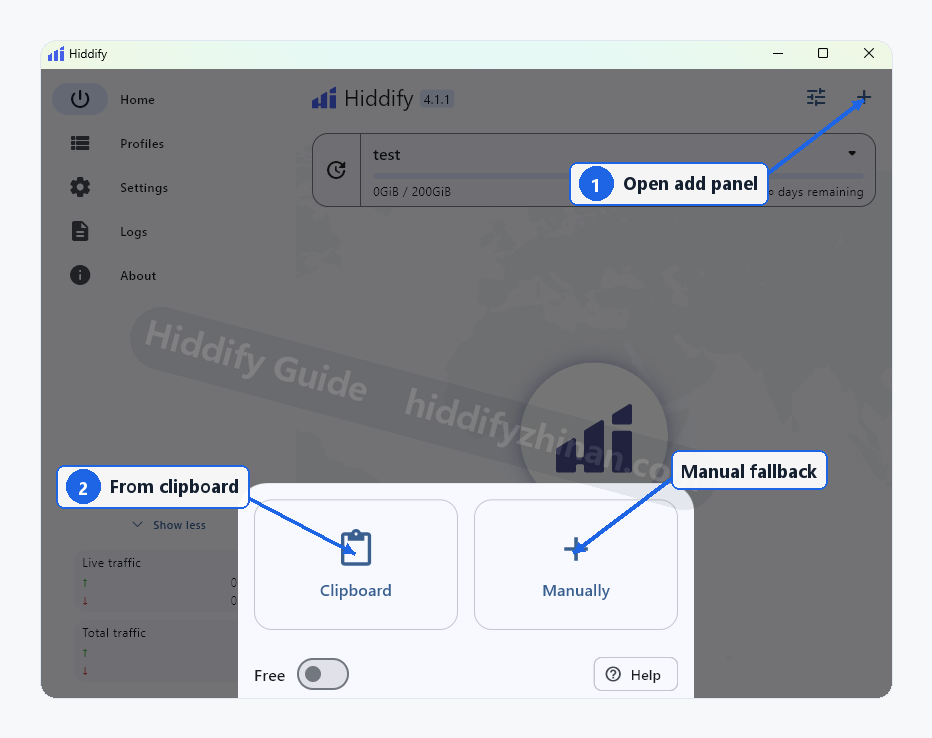
- On Home, select the + control in the upper-right corner to open the add-profile panel.
- In the open panel, select Clipboard to import the complete subscription link you copied. The screenshot shows the sheet already open; marker 1 points back to the control that opened it, while marker 2 identifies the clipboard choice.
Once your profile appears, continue to the connection section. You can skip manual entry after a successful clipboard import.
Use manual entry if Clipboard cannot identify the link
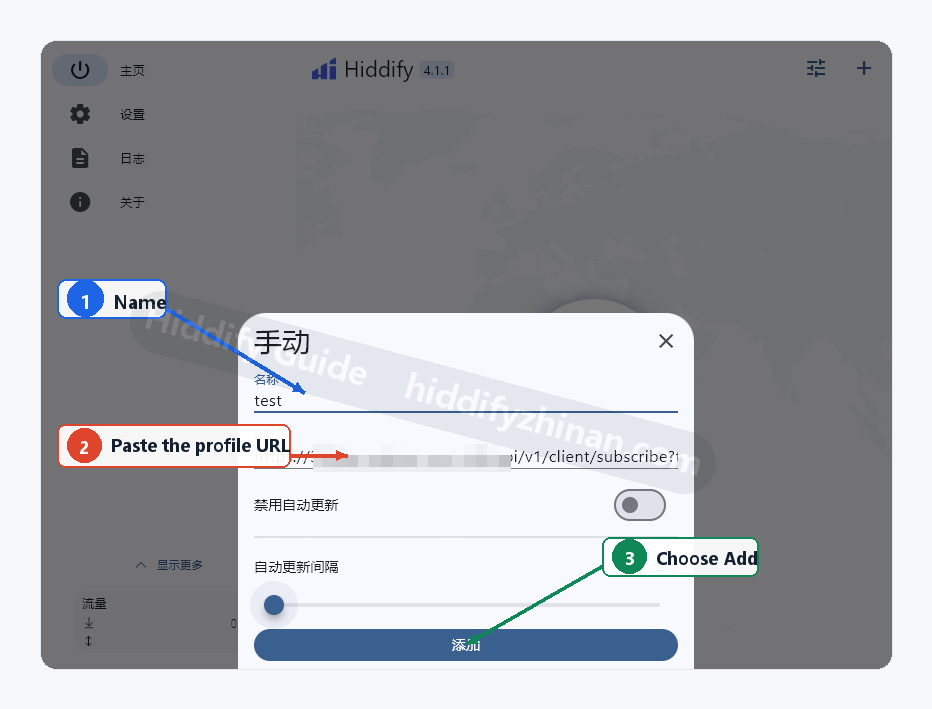
Reopen the add-profile panel with +, then select Manually. Follow the numbers on the form below:
- In Name, enter a short label that will help you recognize this profile. The example name
testis only a label, not an account credential. - In URL, paste your own complete private subscription URL, not the provider’s account-management page.
- Select Add to save the profile.
After saving, return to Home and use the new profile. If the profile is added but no nodes appear, follow the focused steps to fix an empty proxy list.
Connect on the new computer and try your usual app
A visible profile or node list confirms that Hiddify received profile data. The next step is to check the connection you intend to use. If you deliberately changed the proxy mode on the old PC for a particular app, set the corresponding mode on the new computer before connecting. Otherwise, start with the defaults.
- On Home, use the profile area to select the imported profile by the name you recognize.
- Select the central connection button to connect with that profile.
- Open one website or app you normally rely on that genuinely needs this connection. If that target works, the new computer is ready for that use. A Connected state, a node name, or a latency number alone does not establish the same result.
Automatic node selection is sufficient to get started. To pick a particular route after connecting, follow the Hiddify manual node selection guide.
If Hiddify says it is connected but the intended website or app still cannot be reached, keep using the old setup while following the guide to fix a Hiddify connection with no internet access. Before trying a settings change during troubleshooting, record its original value so you can restore it if the change does not help.
Decide what to keep on the old PC
What happens next depends on who will use the old computer.
If both computers remain yours and you want to use Hiddify on each, check the device and concurrent-connection terms in your provider account. Installing the app or importing the same subscription does not by itself establish how many devices the provider permits or whether simultaneous use is allowed.
If the old PC stays private but you no longer plan to use it regularly, keeping its working setup for a short fallback period is reasonable. Once the new computer handles your normal access, decide whether that fallback still has value.
If you will sell, give away, or return the old computer, first preserve access to the provider account and its recovery method. Then remove private Hiddify profiles, saved subscription-link copies and saved provider-account sign-ins from that machine. Check places where you saved the link, such as notes or downloaded files, as well as browser sign-ins; removing the app’s profile does not remove those separate copies.
Frequently asked questions
Will importing the subscription restore all my Hiddify settings?
No. Importing the link retrieves the subscription profile, not a complete backup of local Hiddify or Windows settings. Reapply only the local choices you know you changed, such as a deliberately selected proxy mode. Avoid copying an unknown application-data folder as a substitute for understanding those choices.
Can I keep using Hiddify on both computers?
Possibly, but the provider decides its device and concurrent-connection rules. The fact that the profile can be imported on two computers does not prove that simultaneous use is included in your plan. Check the terms shown in your own provider account rather than relying on a universal device number.
What if I no longer have the old computer?
Install Hiddify on the replacement computer and retrieve your valid private subscription link from your provider account. You can then import it through Clipboard or Manually. Local customizations that existed only on the unavailable computer may need to be set again, and the subscription link should not be posted publicly when asking for help.
Is a visible node list enough to call the move complete?
No. It shows that profile data was imported, but it does not establish that traffic for your intended website or app is working. Connect and perform the target-access check described above. A successful visit confirms that the new setup meets that immediate need.
Settle into the new computer
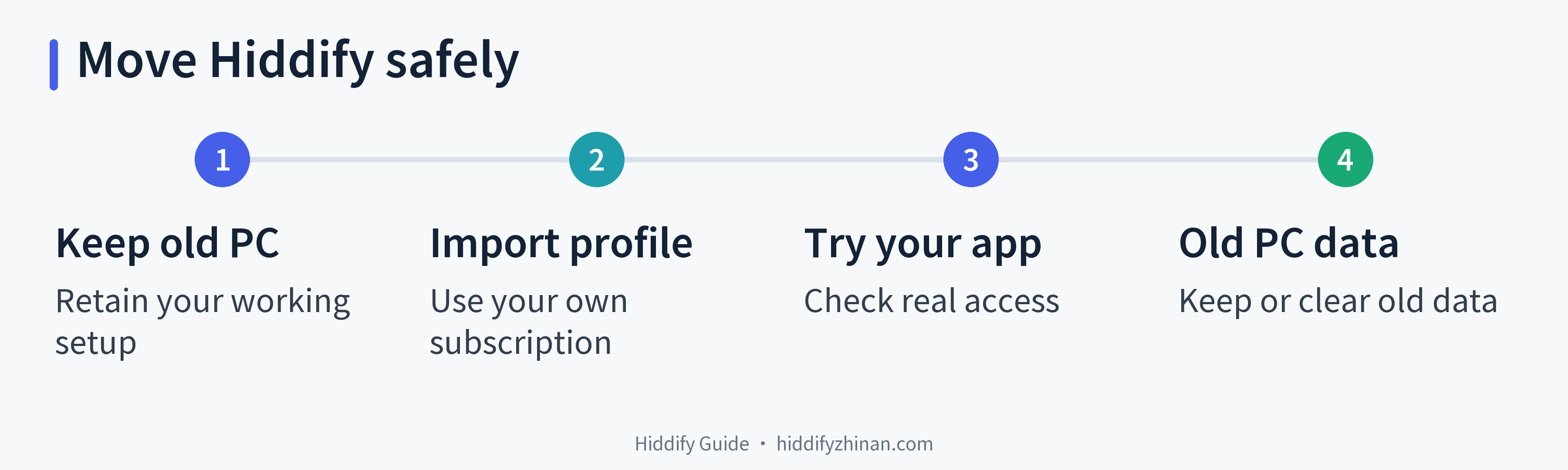
The safe handover has four phases: retain the working old setup, import your own subscription on the new PC, connect and try one real target, then handle the old machine according to who will use it. This order keeps a recovery path available without confusing an imported profile with a full settings backup.
Keep access to your provider account and a record of the local settings that matter to your use. Once the new computer handles your usual apps, the move is complete and the old PC can be kept or cleared according to its next owner. For a different client task, the Hiddify guides provide the related walkthroughs.