

How to choose
Start with System Proxy; Use TUN for a Confirmed Bypass
System Proxy changes less and is easier to undo, so use it to confirm the proxy and browser path first. TUN addresses a clear coverage problem only when the same proxy already works in a browser but the affected app still bypasses it. Switching to TUN will not repair an unavailable proxy, an empty profile, or a broken base network.
Hiddify System Proxy and TUN Compared
| Decision | System Proxy | TUN |
|---|---|---|
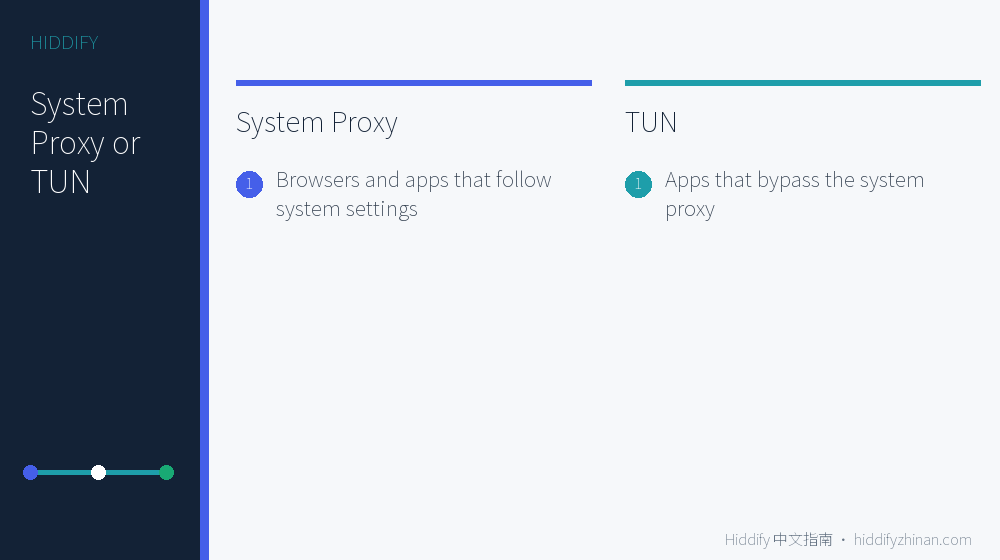
| Primary coverage | Browsers and desktop apps that follow OS proxy settings | Broader traffic captured through a virtual network interface |
| Use first when | First connection, browser verification, or quick recovery | An affected app clearly bypasses System Proxy |
| Additional impact | Usually avoids an additional system-level network permission | May require VPN or TUN permission and affect DNS, LAN access, or another VPN |
| Recovery | Restore the previous mode and disconnect | Disable TUN, restore recorded Inbound and Routing settings, and restart Hiddify |
Choose System Proxy from the Dashboard Mode Menu
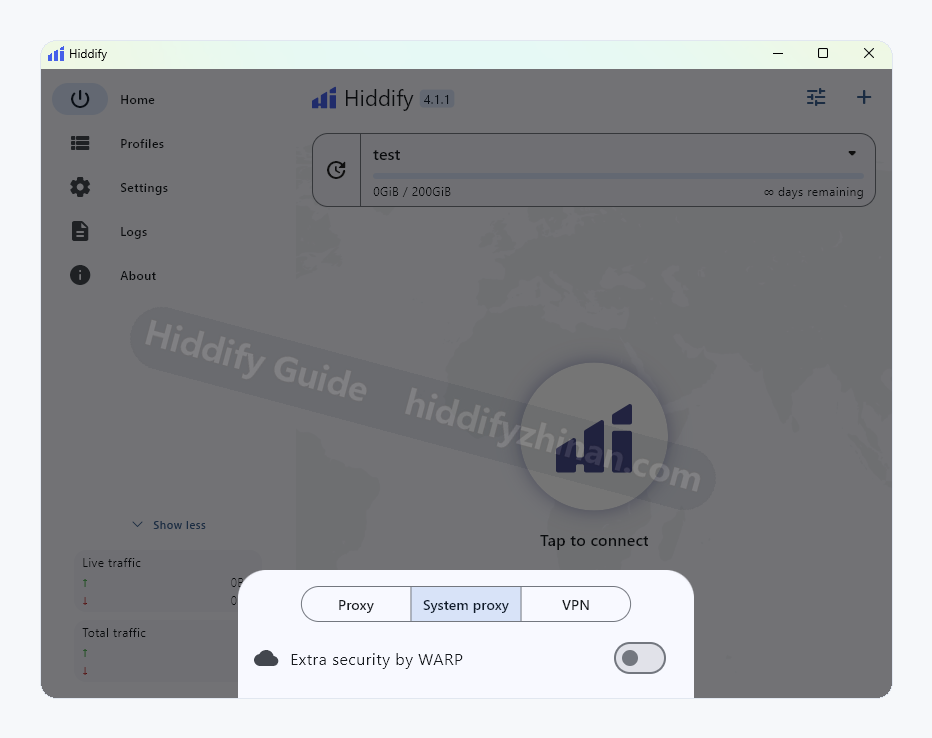
Keep the current proxy unchanged, choose System Proxy from the mode menu, and load a real page in the browser you normally use. This separates proxy availability from whether an app follows OS proxy settings. After the browser works, disconnect once and confirm that the previous network path returns. The feature image above identifies the mode menu by its icon and position.
Use TUN for a Confirmed App Bypass
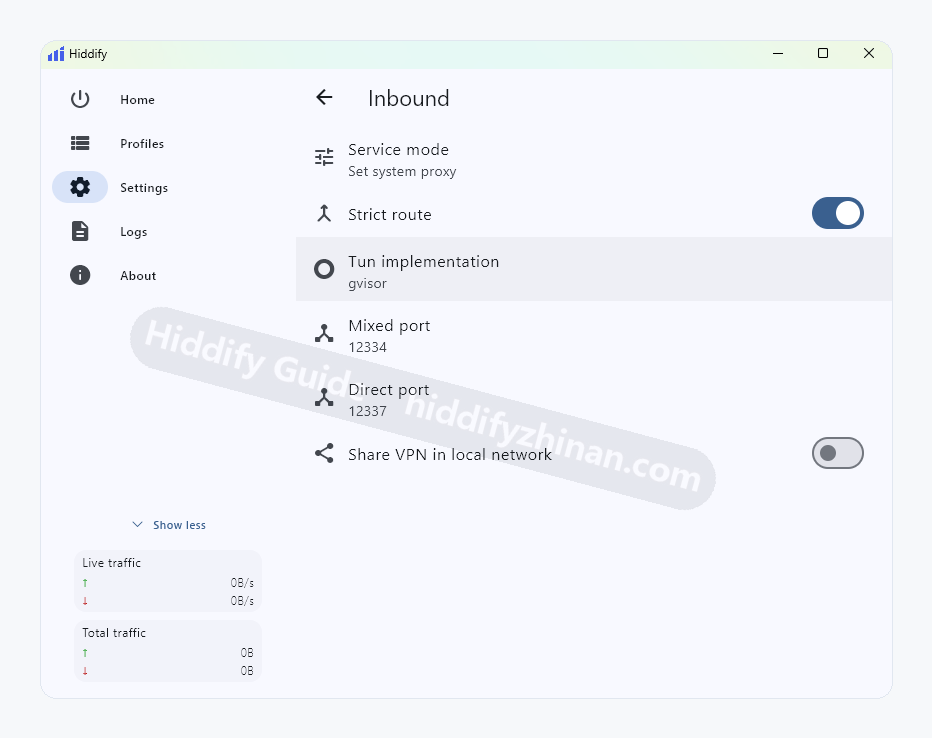
Games, command-line tools, or apps that ignore OS proxy settings may need TUN. Before enabling it, record the current mode, service mode, TUN implementation, and routing settings. Retest only the app that previously bypassed the proxy, without changing DNS, ports, or the selected proxy at the same time.
Routing Settings Decide Proxy, Direct, or Blocked Traffic
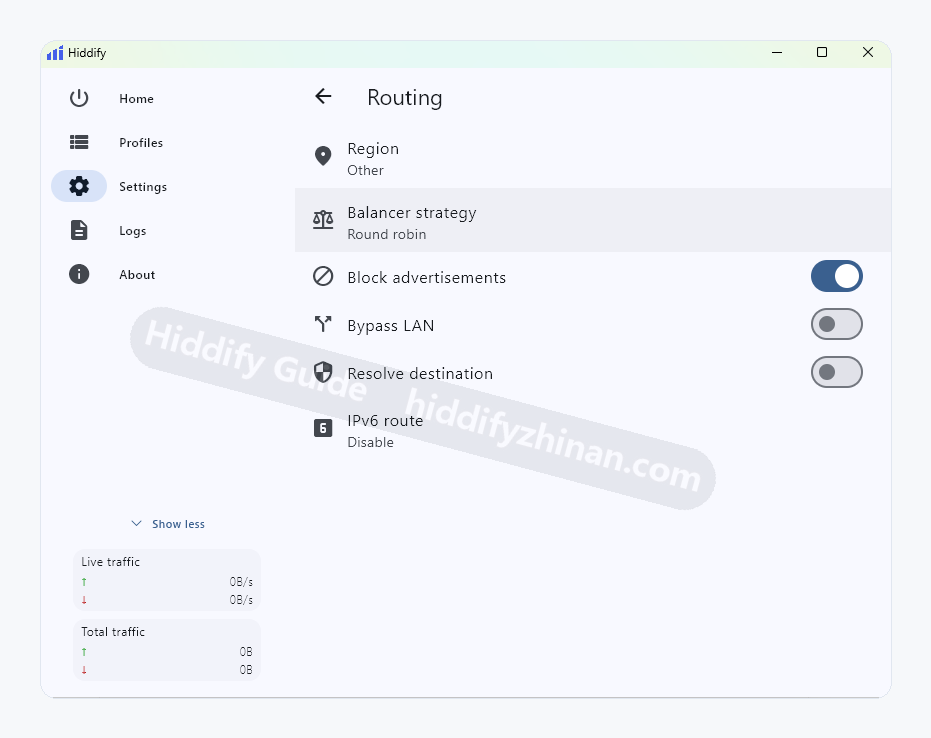
TUN can capture more traffic, but routing rules still decide the final path. If one domain or LAN resource behaves incorrectly, check whether it matches a proxy, direct, or blocked rule instead of rewriting every route because one app failed.
Choose the Mode from the Current Symptom
The browser cannot load a page
Confirm that one proxy remains connected, enable System Proxy, fully restart the target browser, and compare the same page while connected and disconnected. Do not jump to TUN first. A working browser proves the base proxy path; a failure requires restoring the original mode and checking the proxy or System Proxy rather than assuming a coverage problem.
The browser works but one app does not
Check whether the app supports OS proxy settings. If it clearly bypasses them, record the current state and test TUN.
LAN or DNS breaks after enabling TUN
Disable TUN, restore the original Routing and Inbound values, and retest from one controlled change.
Keep the Mode Only After Three Results Pass
- The affected app completes a real request, not merely a Connected label in Hiddify.
- The usual browser and base network still behave as expected.
- Disconnecting or disabling the mode restores the previous network path.
Recover First, Then Open the Matching Guide
After a System Proxy failure, restore the previous mode. After a TUN failure, disable TUN, restore the recorded service mode, Inbound, Routing, and DNS settings, and restart Hiddify. Confirm the browser baseline, local network, and other VPN state before continuing with the single proxy, profile, DNS, or base-network symptom that remains reproducible.