This guide uses the Hiddify 4.1.1 Windows layout. Other versions may arrange the same controls differently. It assumes that Hiddify is installed and that you have already imported at least one subscription.
Hiddify manual proxy selection: follow the numbered screenshots
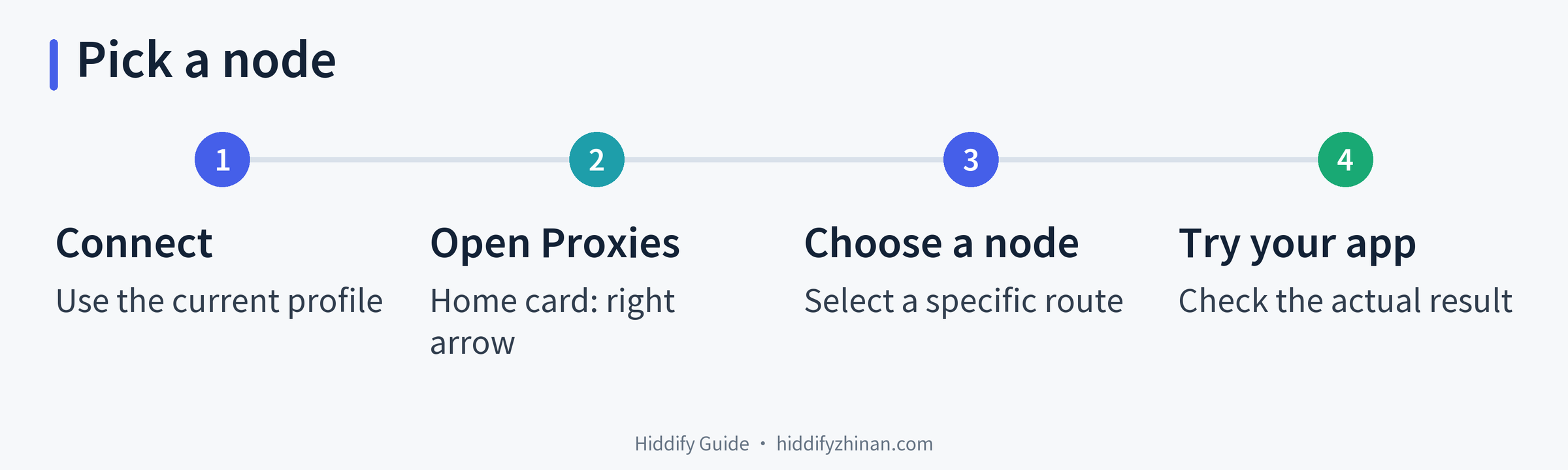
Hiddify normally selects a proxy automatically. Follow this path when you want to replace that automatic choice with one specific node from the current profile. The sequence follows the official Hiddify usage guide: connect first, open Proxies, and then make the manual selection.
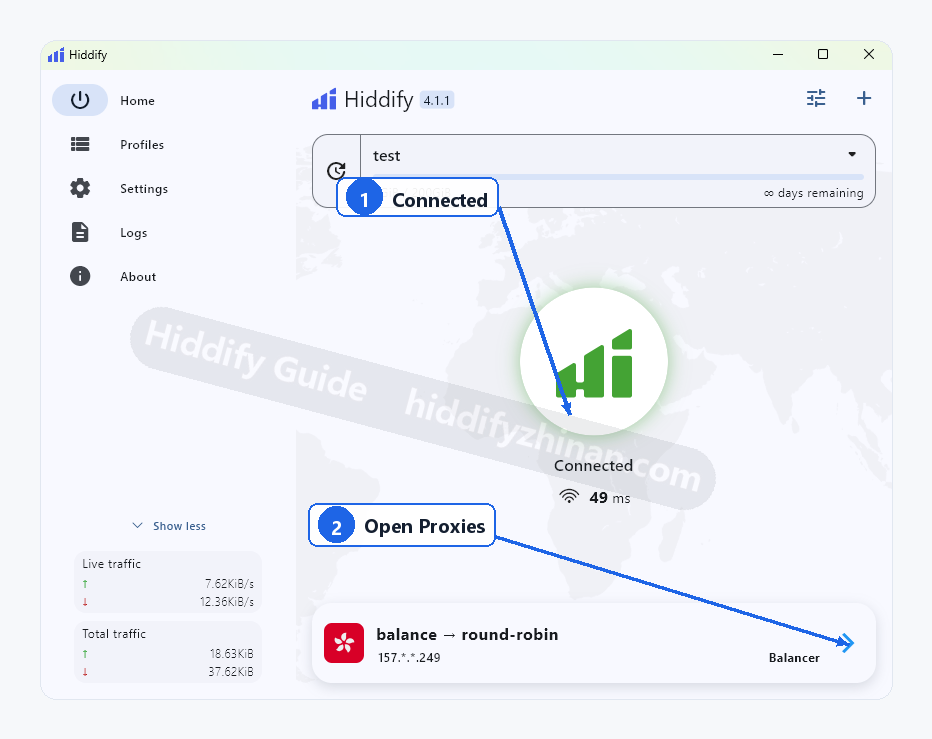
- Connect the current profile if it is not already connected. On Home, click the large circular connection button in the center of the window. Wait until the page shows Connected. If that status is already visible, skip this step.
- Open the proxy list from the active node card. Find the card in the lower-right area of Home and click its main body or the blue arrow at the right end. In Hiddify 4.1.1, this opens Proxies. Do not click the country flag or node icon at the left of the card; that control opens proxy information instead of the list.
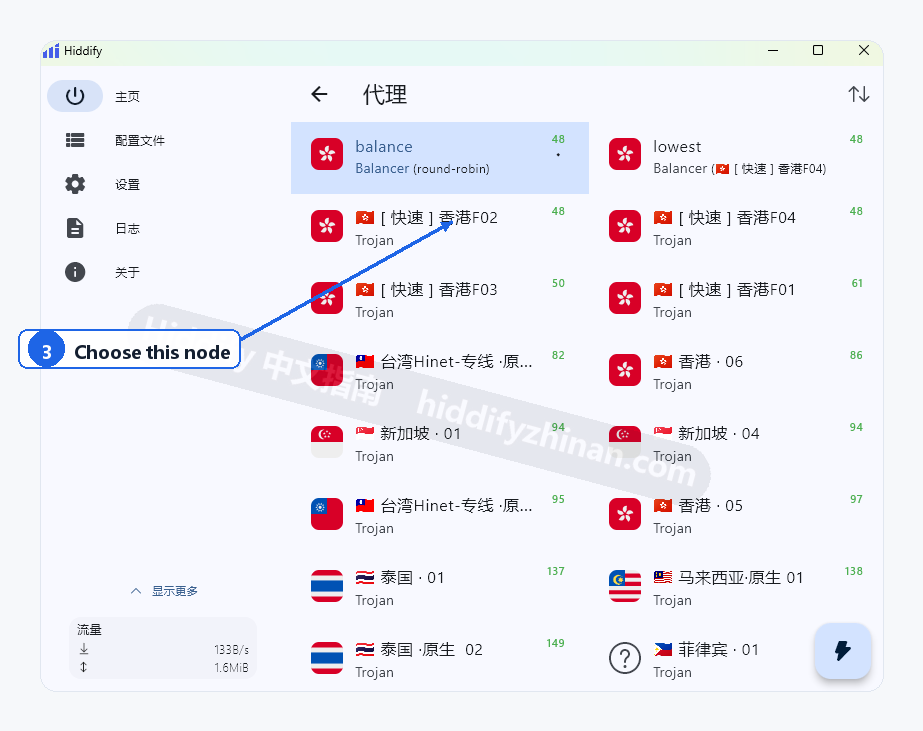
- Select a specific node in Proxies. Click the row for the route you want, rather than the balance group. For example, the screenshot points to [快速] 香港F02. That name is only an example; choose an available node from your own subscription. In the Chinese interface shown below, 代理 is the Proxies page.
- Return to the website or app you wanted to use. Load the actual page or perform the relevant action there. The task is complete when that destination works through the selected node. A Connected label or a green latency number alone does not establish that the destination is usable.
You do not need to disconnect before opening Proxies when Hiddify already shows Connected. If the chosen route cannot complete the target visit, return to the list and try another existing node.
Automatic selection, nodes and profiles are different choices
Three controls can look related while changing different things:
| Choice | What it controls | When to use it |
|---|---|---|
| Automatic selection | Hiddify chooses among available routes | Leave it in place when the current connection already meets your needs |
| A specific node | One route inside the current subscription profile | Use it when you want to try or specify a particular route |
| A profile | Which imported subscription supplies the proxy list | Switch profiles when the desired node belongs to another subscription |
Suppose the current profile contains a balance group and several Hong Kong, Taiwan and Singapore nodes. Clicking [快速] 香港F02 selects that individual route. Clicking balance selects the load-balancing group shown by the interface; it does not identify one fixed node.
Changing profiles is a separate operation. If the node belongs to another imported subscription, open Profiles in the left sidebar and select that subscription first. Then return to Home and open Proxies again. This separation explains why a valid node may appear to be missing even though it exists in Hiddify.
Automatic selection is convenient, but it does not guarantee the best result for every destination. Manual selection gives you a specific route to try; the website or app you intend to use remains the meaningful test.
Use the latency test when the list is long
The Proxies page provides two optional tools for narrowing a long list. They help organize candidates, but they are not required every time you choose a node.
- Click the lightning button in the lower-right corner of Proxies to run the available latency test.
- Read the result displayed beside each node. A smaller value indicates a shorter measured delay in that test, but it is not a download-speed measurement.
- Use the sort control in the upper-right corner to arrange the list by name or test result, then click the specific node you want.
A practical example is to test a long list, choose one of the lower-latency candidates, and then try the target app. If that app does not work as needed, select another candidate. The numbers visible in the screenshot are examples from that captured screen; they do not promise current speed, stability or access to a particular service.
Running repeated latency tests after the target app already works adds little to this task. Stop when the selected route completes the visit or action you came to perform.
If the node card or the expected nodes are missing
In Hiddify 4.1.1, the active proxy card appears on Home when the app is connected and has active-proxy data. If the card is absent, first check the connection state on Home. Click the central connection button only when the app is not connected; once Connected appears, look again in the lower-right area.
If Proxies opens but does not contain the nodes you expected, check the selected profile. The proxy list belongs to the current profile, so nodes from another subscription will not appear until you select that subscription under Profiles. Keep your existing profiles while diagnosing the mismatch, and never publish or share a private subscription URL.
An entirely empty list is a different problem. Follow the steps to fix an empty Hiddify proxy list rather than repeatedly searching the current page. If nodes are present and selectable but the target still cannot reach the internet, troubleshoot a Hiddify connection that cannot reach the internet. For the separate question of which traffic mode should carry an app, see how to choose between TUN and System Proxy.
Frequently asked questions
Do I need to choose a node if automatic selection already works?
No. Leave automatic selection in place if it already completes the task you need. Open Proxies and choose a specific node when you want to try or specify one route. Neither automatic selection nor a manually chosen low-latency node guarantees the best result for every website or app, so judge the choice by the destination you actually use.
Must I disconnect and reconnect after every manual choice?
No routine disconnect-and-reconnect step is required for this path. Connect first, open Proxies, choose the node, and then try the target destination. A separate connection problem may require its own troubleshooting, but changing a node while already connected does not by itself require adding a reconnection cycle.
Why are the nodes from my other subscription missing?
Proxies displays nodes from the currently selected profile. Open Profiles in the left sidebar, choose the profile for the other subscription, return to Home, and open Proxies again. If that profile still produces an empty list, use the empty proxy list guide.
Return to the task you wanted the connection for
Manual selection is useful because it lets you name the route Hiddify should use for this attempt. It is not a result by itself. Once the chosen node loads the website or completes the action in your target app, the selection has served its purpose and you can continue using that app.
The whole path is short: connect the current profile, open its Proxies list from the Home card, choose one specific node, and return to the destination that prompted the change. If you need another Hiddify task later, browse the other Hiddify guides.