

An update failure alone cannot tell you that the account expired, the provider went offline or Hiddify has a client bug. Deleting the only usable profile would also make your next connection depend on the very download that is failing.
Why a node can work while the subscription will not refresh
When Hiddify imported your subscription earlier, it saved configuration that can include nodes. A node may still carry a connection using that saved information. Update asks a subscription server for a new configuration. A network route, domain, account permission or server response can affect the new request while the old node remains usable.
First verify that “works” means a fresh request actually succeeded: open a website or app you normally need, then load a new page. Text already on an old browser tab, a green app indicator or a latency number does not show that the current request reached its destination. If the real target fails too, go to the connection troubleshooting guide; the problem is broader than refresh alone.
A public Hiddify issue about subscription-domain migration describes one way an old download address may become unavailable while users need a new address. It is a user report and feature discussion, not proof that your provider changed its domain.
Keep the profile and compare one update attempt
Start from Home in Hiddify. The versioned Windows example below shows the selected profile near the top and a circular refresh control at its left. Its center says “Tap to connect”, so this image shows a disconnected state. It demonstrates where controls were in that release; it does not show a successful update or live connection.
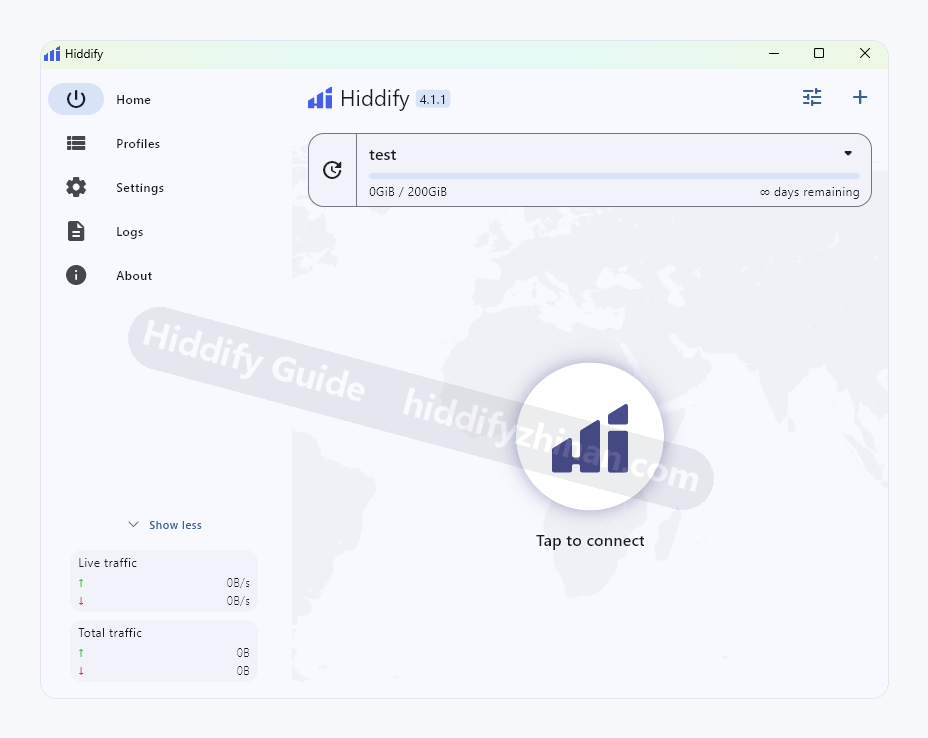
Versioned control example. The selected profile, refresh button and connection state are separate things to check.
- Confirm which profile is selected. If you have several subscriptions, open Profiles and match the name of the profile reporting the update error. A node that works under one saved profile does not prove another profile can refresh. The official Hiddify usage guide describes adding and using a profile, connecting and choosing proxies as distinct actions.
- Preserve the currently usable profile. Do not delete it or overwrite its address while diagnosing. If you will change networks, save any work that might be interrupted. Keep the error message and time, but redact the URL or QR code in anything you may share.
- Retry that same profile once under your current connection. Note whether the result is a timeout, an account or permission response, a certificate error, or another exact message. Repeatedly pressing refresh without a changed condition adds little evidence.
- If practical, compare on another trusted network. Update the same profile once after switching, for example between your usual Wi-Fi and mobile data. A different result points toward a network-dependent path; the same failure makes the provider address, account and endpoint worth checking. This comparison does not diagnose the cause by itself, and switching networks may interrupt a working session.
If the same Hiddify profile updates and a fresh page opens, note the result and stop retrying; if the update fails again, check the provider address and record the exact error before changing anything else.
Keep those two results together. Your next step is to check the provider's current information, not to change DNS, TLS and routing at the same time.
If the Hiddify subscription request fails while a saved node works, compare the same profile on another trusted network and check the provider's current address. A different result identifies a network-dependent clue, but it does not confirm a universal client fault; stop short of deleting the working profile until a replacement succeeds.
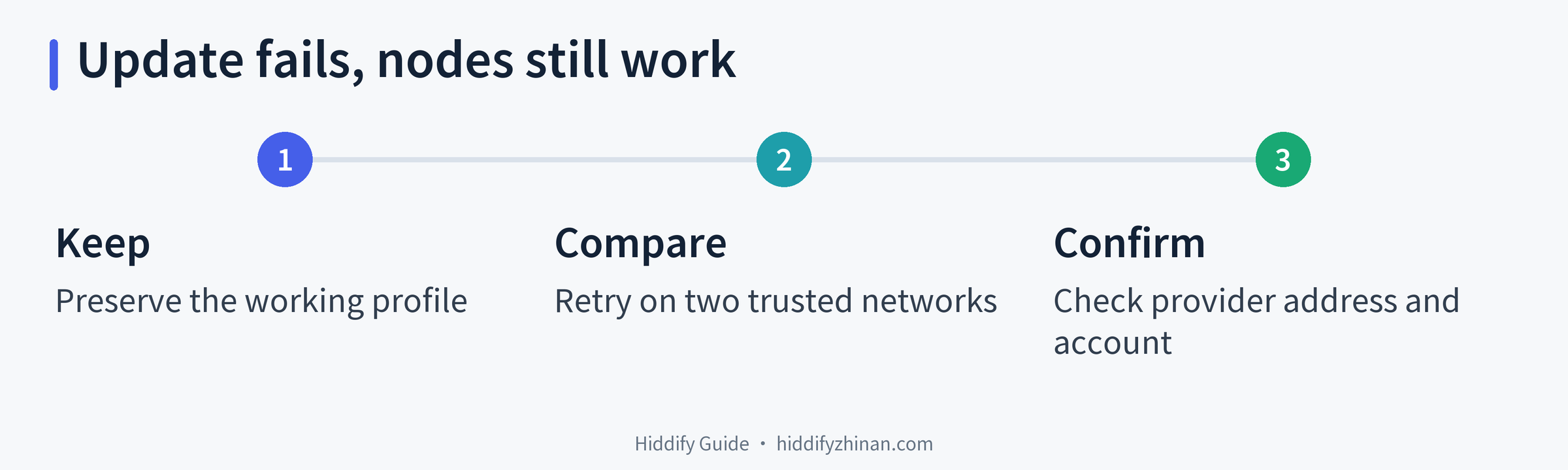
Editorial decision card. It summarizes what to preserve and check; it is not an app test result.
Check the provider's address and account notice
Sign in through the provider account address you already trust. Look for a maintenance notice, plan status and the current subscription URL. Opening the provider's home page in a browser is a useful sign that the site responds, but that page and the subscription endpoint are different requests. A working home page does not establish that Hiddify can fetch your configuration.
If the provider explicitly issued a new address, follow its instructions. Where Hiddify permits a separate profile, add the new address alongside the existing one. Make sure it loads nodes and opens a real destination before retiring the older entry. The English guide library contains the basic profile and connection tasks if you need the client steps. Keep the new private URL out of public screenshots and online converters.
If the provider has not announced a new URL, do not guess one from a forum or a redirected page. Send the exact error type and your two network results to provider support. The provider can check the subscription endpoint behind the address it issued. An older Hiddify issue report describes a browser reaching a site while the client import timed out; it is a historical report, not evidence that the same client fault explains your current failure.
Use the error to choose the next support route
A timeout says the request did not complete in time. Your comparison across two trusted networks and the time of each attempt help the provider check its subscription endpoint. A permission or account response calls for the provider to verify the account and the URL it issued. A certificate error calls for checking the device clock and the provider address; turning off certificate validation to get an update through would remove an important check on the response.
If the provider confirms the address and account are valid but the same request still fails, record your Hiddify version and check the project's current known issues or official help. That is a reasoned client-side branch, not a reason to reinstall every time. A version change may be relevant, but it cannot replace an answer about an unavailable provider endpoint.
You can adapt this private support message without pasting the link:
My Hiddify subscription update fails while an older saved node still opens a fresh website. I can provide the device, app version, profile name, exact error and time through this private channel. I also compared two trusted networks and will include both results. Please confirm my current subscription address, account status and the subscription endpoint's availability. I will send redacted screenshots if useful.
If the old node stops opening real destinations while you investigate, switch to the connection guide and describe that new symptom. If it continues to work, keep the profile available until a replacement is proven usable; the failure of refresh has a smaller scope than a total loss of access. The manual proxy selection article explains choosing a node inside an active profile, a separate task from refreshing that profile. You can also return to the Hiddify article directory.
Questions about a working old node
If a saved node works, does that mean the subscription address is fine?
Not necessarily. The saved node can use configuration the app already has. Refresh asks a server for a new copy. Check the latter request and the provider's current address separately.
Should I delete the profile and import it again?
Keep a working profile while the address is uncertain. If the provider gives you a replacement, add it separately where the client allows, check nodes and a real destination, and only then decide whether to remove the old entry.
The provider website opens in my browser. Why can refresh still fail?
The home page and the subscription endpoint may differ in URL, routing, authentication or availability. Preserve the update's exact error and time. The provider can confirm the endpoint and account; an open home page cannot make that determination.