

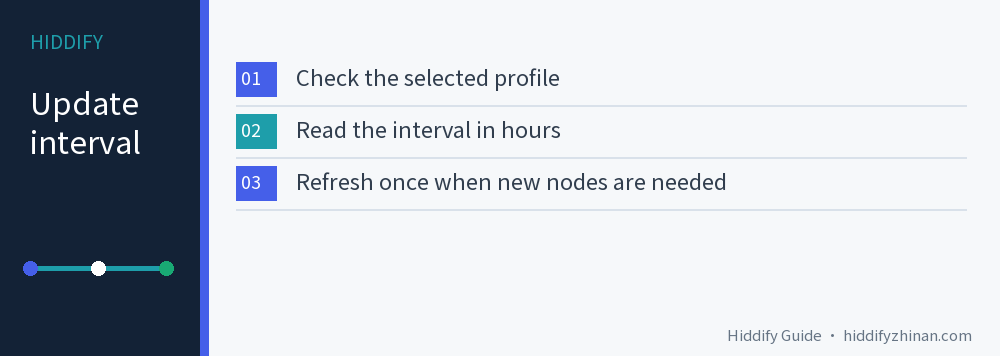
Check the selected profile before checking its timer
If you have more than one subscription, note the name of the profile currently selected in Hiddify. The update information belongs to a particular profile; a setting or provider notice for one subscription does not tell you what another uses. The subscription update guide (in Chinese) covers the manual update control if you need to find it.
Where your Hiddify version displays an automatic update option, check whether it is enabled for this profile and read the shown interval and unit. If the client does not show a value, ask the subscription provider whether it supplies an interval. Do not paste a private subscription URL into an external checker just to find a header.
Read 12 as hours, not minutes or a universal default
The official documentation gives this response-header example:
profile-update-interval: 12
In that field, 12 represents 12 hours; 24 would represent 24 hours. The provider can supply the header with its subscription response. The example does not prove that every provider sends it, that every version exposes the same editing screen, or that your current profile defaults to 12 hours.
Before changing an editable interval, record its existing value. Follow the unit shown by the client when you enter a new number, save, and read the setting back. A value copied from another client that uses minutes could be badly wrong when entered into an hours field.
Refresh once when you need a new node now
If your provider announces a changed node, choose the relevant profile and run its manual update. Compare the result with the specific change the provider announced, then connect and open a real destination. A longer automatic interval does not prevent a manual refresh, and a shorter interval cannot repair a subscription address that the app cannot reach.
An “update successful” message with the same number of nodes does not prove the returned profile is unchanged. The server may have returned identical content, or it may have changed parameters without changing the node count. Check the announced name or setting when one was supplied. Conversely, a manual update proves only that this request ran; it does not prove a scheduled refresh will run later, particularly while the device is off or offline.
Diagnose the result before changing the schedule
| Manual update result | Useful next check |
|---|---|
| Succeeds and reflects the provider's announced change | Check this profile's auto-update setting and interval, then observe the next expected update when the app can run. |
| Succeeds but the expected change is absent | Confirm the selected profile and the provider's notice; node count alone is inconclusive. |
| Fails | Record the error and time; check the private source address and network through the provider's supported route. A faster timer will repeat the same failing request. |
If older nodes still work, keep the profile while following the update-failed, nodes-working guide. If the connection itself also fails, use connection troubleshooting. Avoid deleting a working profile solely to test an update interval.
Choose a schedule from the need you actually have
Compare the provider's change frequency with how soon you need new nodes and what the client actually reports over time. When updates arrive as needed and your nodes complete your task, another article's favorite number gives no reason to change yours.
If support needs evidence, provide the profile name, Hiddify version, interval with its unit, manual update result, and error time. Redact the subscription URL and QR code from screenshots. The English article index has related account and client questions.